
The Service Catalog module in Governata is a central tool for managing and documenting the technical systems and services related to data within the organization.
This module enables registering details of systems and databases used in the organization, such as:
- Database systems
- Technical applications
- Data-related services
- Licensing and hosting information
- System-owning parties
This helps create a unified reference for systems and services, supporting operations such as:
- Data governance
- Technical asset management
- Understanding data-related systems
- Facilitating data sharing and system integration
The Service Catalog module aims to document all technical systems and services related to data within the organization in one place.
This helps to:
- Create a unified reference for systems used within the organization
- Understand the relationship between systems and their associated data
- Support data governance operations and system integration
- Facilitate knowing the owning and responsible parties for each system
This manual covers how to use the Service Catalog module within Governata, including:
- Accessing the Service Catalog within the system
- Browsing the main page and its components
- Searching and filtering within registered systems
- Adding a new system to the Service Catalog
- Managing registered systems and services
System
Any application or technical platform used within the organization to process or manage data.
Database Software
The system used to manage databases such as SQL Server or Oracle.
System Type
The application interface through which the system operates, such as Web, Desktop, or Mobile.
Business Owner
The person or department responsible for using the system from a business perspective.
5. Roles and ResponsibilitiesManaging the Service Catalog requires participation from a number of roles within the organization to ensure systems and services are properly documented.
Key roles include:
Data Governance Officers
Review systems related to data and ensure they are documented within the platform.
IT Teams
Manage systems and technical applications and add new systems to the Service Catalog.
System Owners
Responsible for updating system information and related data.
Data Analysts
Use the Service Catalog to understand the systems that produce or depend on data.
Compliance Officers
Review systems to ensure they comply with regulatory policies and governance requirements.
6. Target AudienceThis module is used by several roles within the organization such as:
- Data Governance Officers
- IT Teams
- Data Analysts
- System Owners
- Compliance Officers
To access the Service Catalog and browse systems quickly:
- Select Service Catalog from the side menu.
- Review the top-level indicators to check the status of registered systems.
- Use the search box to find a specific system.
- Use filtering tools to narrow results by system type or database.
Figure (1): Accessing the Service Catalog module
[Figure (1)]
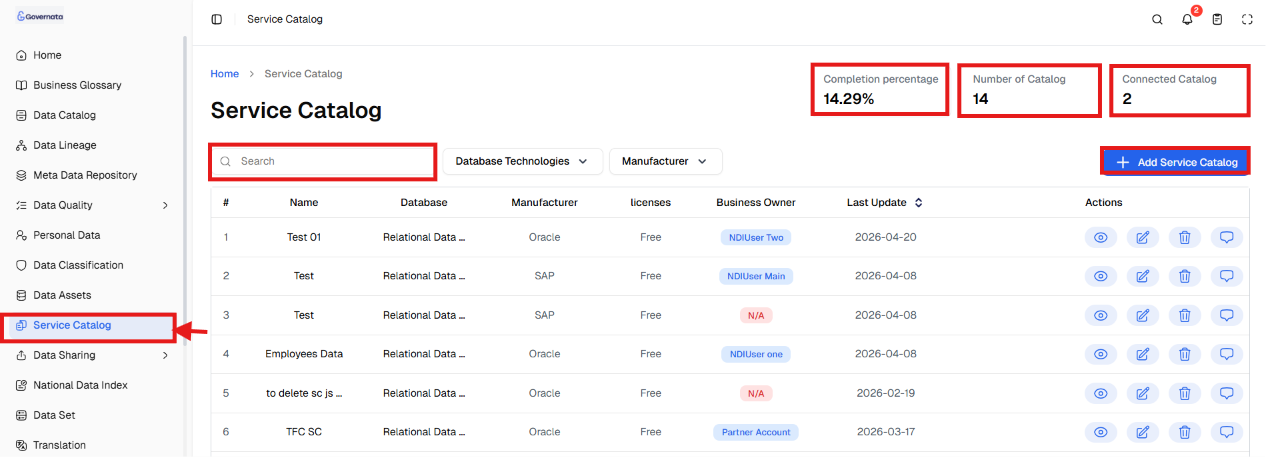
The main page displays all systems and services registered within the system.
Statistical Indicators
The upper section of the page displays general indicators such as:
Linked Index
Number of indexes linked to registered systems.
Number of Indexes
Total indexes registered within the Service Catalog.
Completion Rate
Percentage of completeness of system information within the system.
These indicators help understand the level of system documentation within the organization.
Search and Filtering Tools
The system provides tools that help the user access systems easily.
Search
To search for a specific system:
- Navigate to the search box.
- Type the system or database name.
- Matching results will appear immediately.
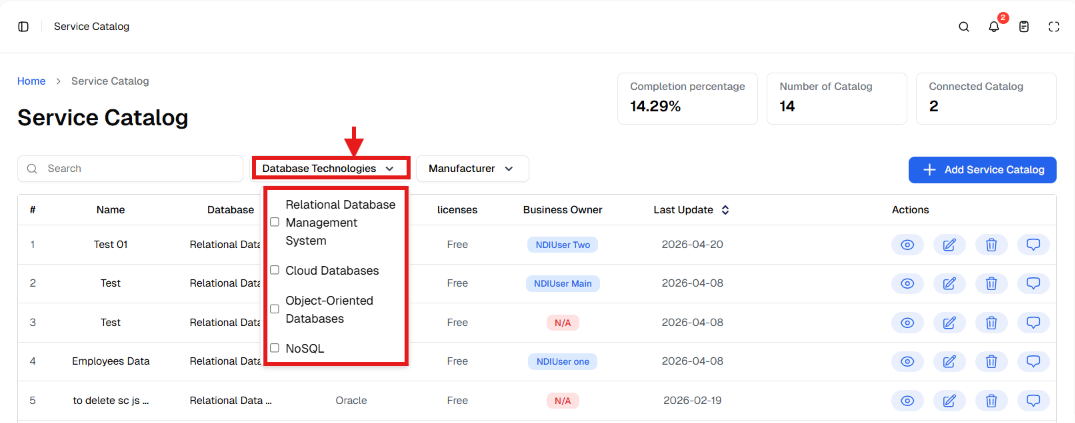
Filter by Database Software
To filter systems by database type:
- Click the Database Software dropdown.
- Select the database type such as: SQL, Cloud databases, Object-oriented databases.
Results will update automatically.
Figure (2): Filter by database type
[Figure (2)]
Filter by System Type
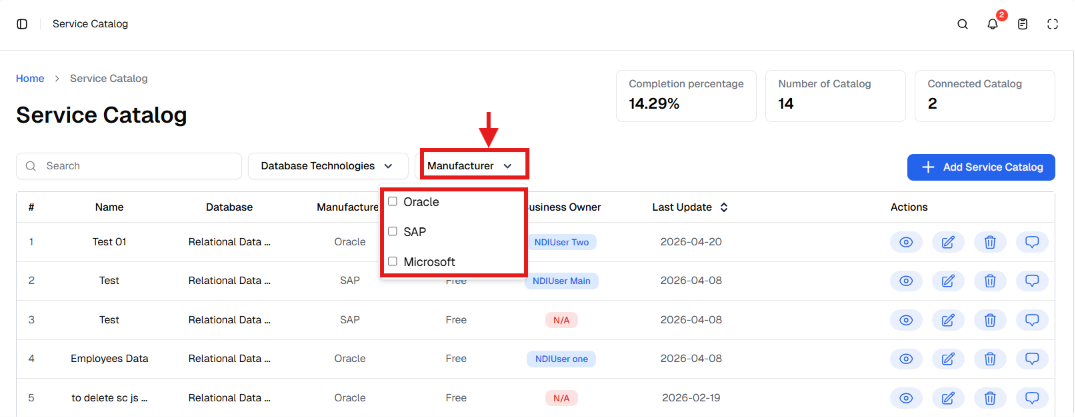
Systems can be filtered by application interface type.
Steps:
- Click System Type.
- Select one of the following: Web, Desktop, Mobile.
Matching systems will be displayed.
Figure (3): Filter by system type
[Figure (3)]
Systems and Services Table
The table displays all systems registered within the Service Catalog.
Figure (4): Service Catalog table
[Figure (4)]
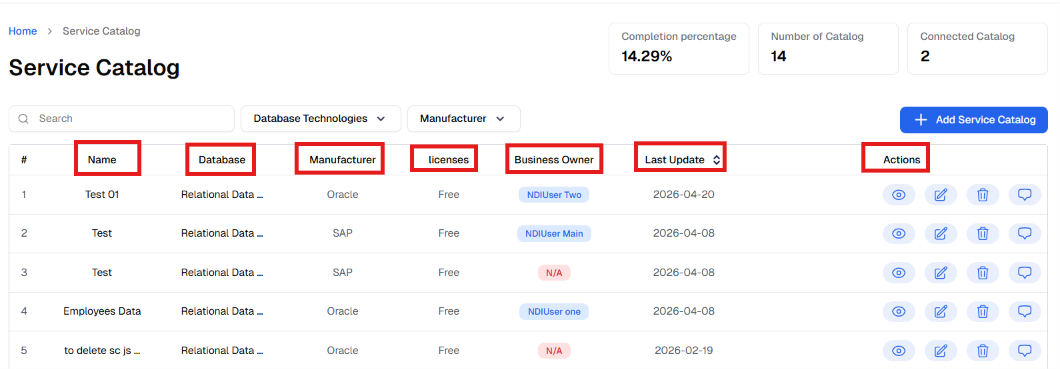
The table includes information such as:
- System number
- System name
- Database type
- System type
- License
- Business Owner
- Last updated
Available Actions on Systems
The system provides a set of actions that can be performed on each system:
View
To view system details.
Edit
To edit system information.
Delete
To delete the system from the Service Catalog.
Open Chat
To communicate with parties related to the system.
Adding a New System to the Service Catalog
A user can add a new system to the Service Catalog.
Step 1: Open the Add Form
To add a new system:
- Navigate to the Service Catalog page.
- Click the Select from Service Catalog (+) button.
A new system addition form will appear.
Entering Basic Information
The first step involves entering the basic information for the system.
Figure (5): Basic system information
[Figure (5)]
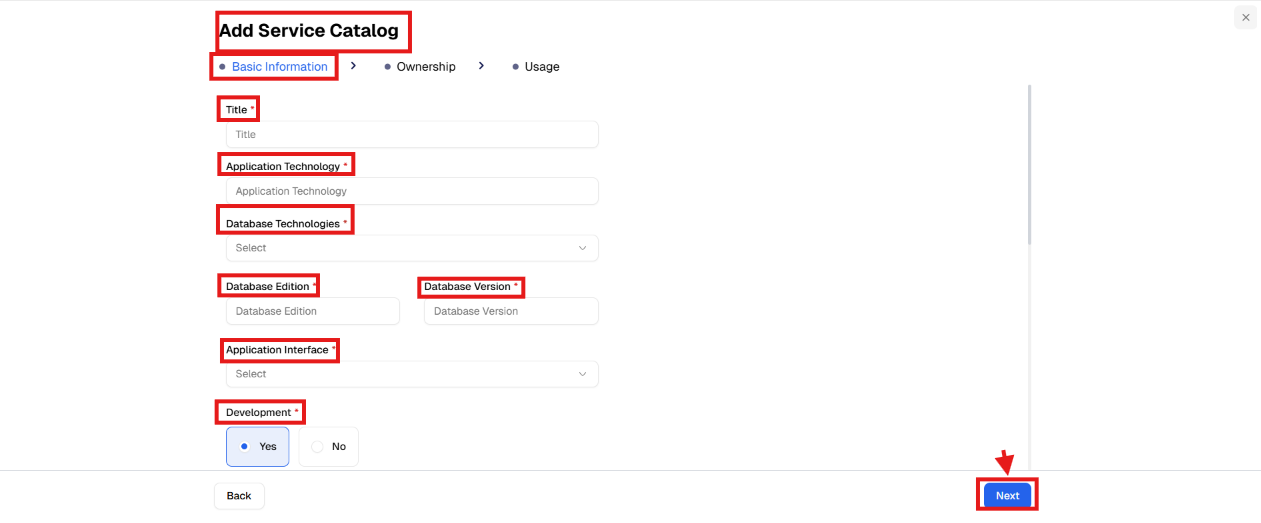
Steps:
- Enter the system title.
- Select the application interface technology.
- Select the database software.
- Enter the database version number.
- Specify the database copy type.
Specifying the System Type
To specify the system type:
- Click the System Type dropdown.
- Select one of the options: Web, Desktop, Mobile.
License and Development Information
At this stage, the licensing information for the system is entered.
Steps:
- Specify whether the system is under development: Yes or No.
- Select the license type such as: Free or Commercial.
- Specify the license type: Subscription or Perpetual.
- Enter: License renewal date and License value.
Hosting Information
The hosting location of the system is specified.
Steps:
- Select the hosting type: Cloud or On-Premises.
- Enter the service provider name.
- Enter the system launch date.
- Specify whether the system is a core system.
Ownership Information
At this stage, the parties responsible for the system are identified.
Figure (6): Ownership information
[Figure (6)]
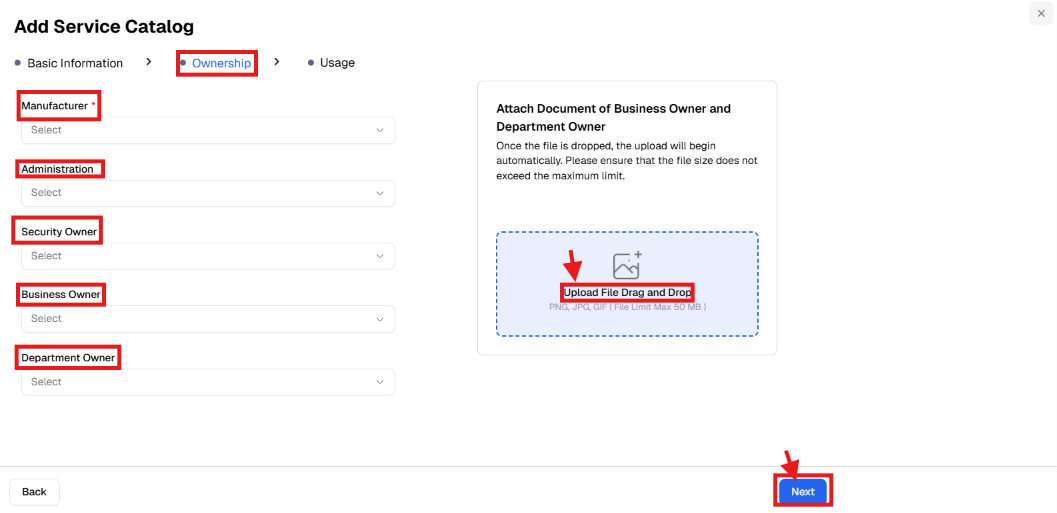
Steps:
- Select the system type.
- Select the responsible department.
- Identify the Security Owner.
- Identify the Business Owner.
- Identify the Department Owner
A document can also be attached explaining: the Business Owner or department representative document.
The file is uploaded by: Clicking the file upload area, Dragging and dropping the file, or Selecting the file from the device.
|
📌 Note The system supports file uploads in formats such as PNG – JPG – GIF and a maximum size of 50 MB. |
Usage Information
In the final stage, the roles associated with using the system are identified.
Figure (7): Usage information
[Figure (7)]
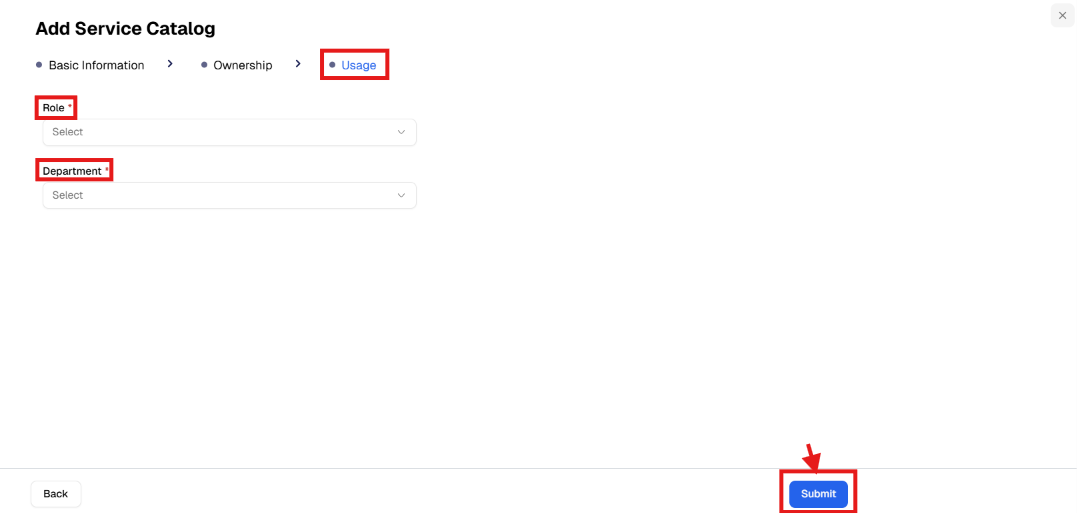
Steps:
- Select the role from the dropdown.
- Select the department associated with the system.
- Review the entered information.
- Click Submit to save the system.
10. Usage Scenarios
Scenario 1: Adding a New System to the Service Catalog
Situation
An IT officer wants to register a new system within the organization.
Steps
- Navigate to Service Catalog.
- Click Add New System.
- Enter basic information.
- Enter license and hosting information.
- Identify the system-owning parties.
- Enter usage information.
- Click Submit.
Outcome
The system is registered within the Service Catalog and becomes available for use within the software.
Scenario 2: Searching for a System within the Service Catalog
Situation
A user wants to view details of a specific system.
Steps
- Navigate to the Service Catalog page.
- Type the system name in the search box.
- Select the system from the results.
- Click View.
Outcome
The details of the registered system are displayed.
11. PermissionsThe ability to perform actions within the Service Catalog module depends on the permissions granted to the user within Governata.
Some users may be able to:
- View registered systems
- Add new systems
- Edit system information
- Delete systems
Some operations may also be restricted based on the user role within the organization.
12. Best PracticesTo ensure effective management of the Service Catalog, the following is recommended:
- Register all systems used within the organization
- Update licensing information periodically
- Identify a clear owner for each system
- Document hosting and operational information
|
📌 Tip It is recommended to update system information regularly to ensure data accuracy within the Service Catalog. |
|
📌 Note Fully registering systems helps support data governance operations and system integration. |
What is the purpose of the Service Catalog module?
It aims to document technical systems and services related to data within the organization in one place.
What is the difference between the Service Catalog and Data Sources?
The Service Catalog focuses on documenting technical systems and services, while the Data Sources module focuses on connecting databases or technical tools to the platform to discover data from them.
Can system information be edited after it is added?
Yes, system information can be edited at any time through the Edit option within the actions menu.
Can a system be deleted from the Service Catalog?
Yes, any unused system can be deleted through the Delete option, according to the permissions granted to the user.
Why is it important to register systems within the Service Catalog?
Registering systems helps understand the technical data environment within the organization and facilitates governance and integration o