
1. Overview
The Metadata Store module is one of the core components of Governata. It aims to display and organize the technical structure of databases without the need for direct access to database systems.
It provides a technical reference that helps users browse:
- Databases linked to different sources
- Tables and columns within databases
- Relationships between tables
- Stored Procedures
- Functions
It also helps data and technical teams to:
- Understand data architecture within systems
- Analyze relationships between tables
- Track database components
- Support data governance and quality
The Metadata Store module enables users to understand the technical structure of data within the organization in an organized and clear manner.
This helps to:
- Document database components
- Facilitate understanding of relationships between tables
- Review stored procedures and functions linked to data
- Support data and technical teams in managing the technical architecture of systems
This manual covers how to use the Metadata Store module within Governata, including:
- Accessing the Metadata Store
- Selecting the data source and database
- Browsing tables and virtual tables
- Reviewing stored procedures and functions
- Understanding relationships between tables
- Reviewing access-related permissions
Metadata Store
A module within the system that enables viewing and organizing technical information related to data sources and databases.
Virtual Tables
Logical tables used to represent data without physically existing within the database.
Stored Procedures
A set of programmatic commands stored within the database that execute specific operations on data.
Functions
Operations used to perform calculations or transformations on data within the database.
5. Roles and ResponsibilitiesManaging the Metadata Store requires participation from a number of roles within the organization to ensure understanding and organizing the technical data structure.
Key roles include:
Data Engineers
Review databases, tables, and relationships between them to understand the technical data structure.
Data Stewards
Contribute to reviewing metadata and ensuring it aligns with governance requirements.
Governance Teams
Use the store to understand the relationship between data and its linked technical components.
Data Analysts
Use the store to explore tables, relationships, and functions related to data before using it in analysis.
Technical Teams
Review stored procedures, functions, and relationships between tables to support development and maintenance operations.
6. Target AudienceThis manual targets users who work with the technical data structure within the organization, such as:
- Data Engineers
- Data Stewards
- Governance Teams
- Data Analysts
- Technical Teams
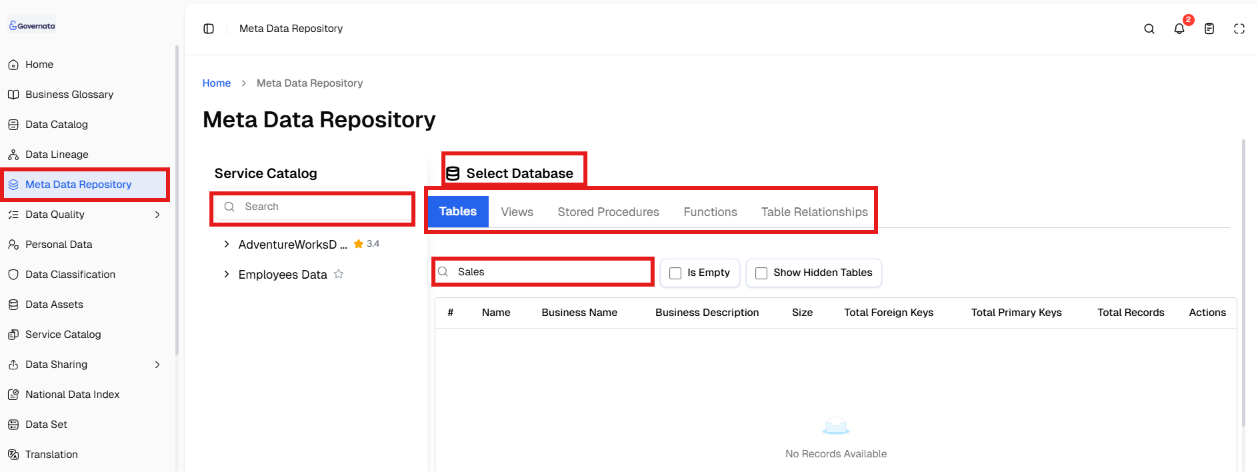
To access the Metadata Store and browse data quickly:
- Select Metadata Store from the side menu.
- Select the appropriate Service Catalog.
- Select the required database.
- Open the appropriate tab such as Tables, Relationships, or Stored Procedures.
Figure (1): Metadata Store main page
[Figure (1)]
|
📌 Note The data displayed in this store depends on the data sources linked to the system. |
|
📌 Tip Make sure to select the correct database before browsing tables or relationships, as all tabs depend on it. |
The main page displays the tools needed to browse database components.
The page includes:
- Service Catalog selection
- Database selection
- Component browsing tabs
Service Catalog Selection
The Service Catalog appears on the right side and contains the data sources linked to the system.
To select a data source:
- Navigate to the Service Catalog section.
- Use the search field if needed.
- Select the required data source.
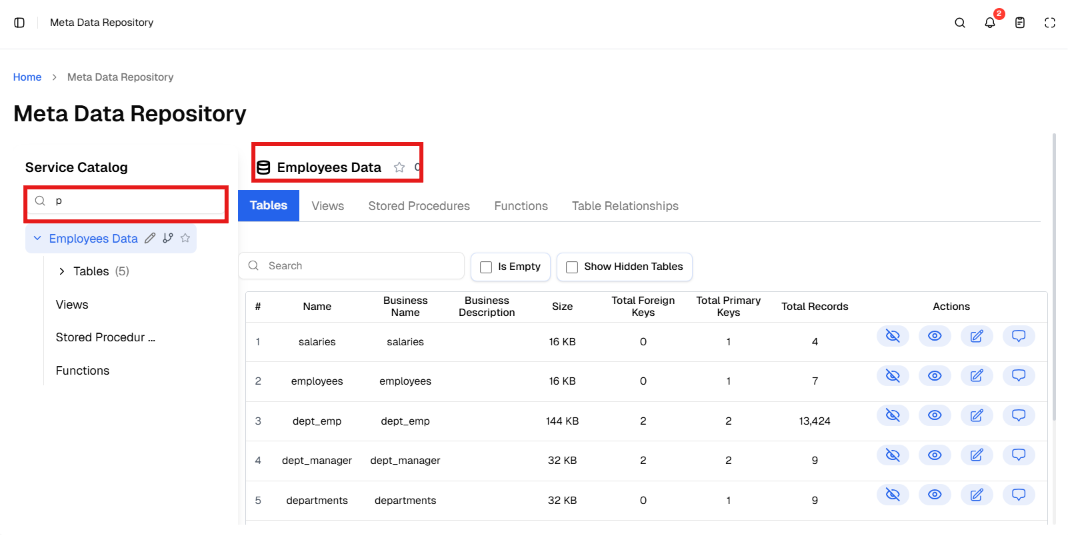
As shown in Figure (2).
[Figure (2)]
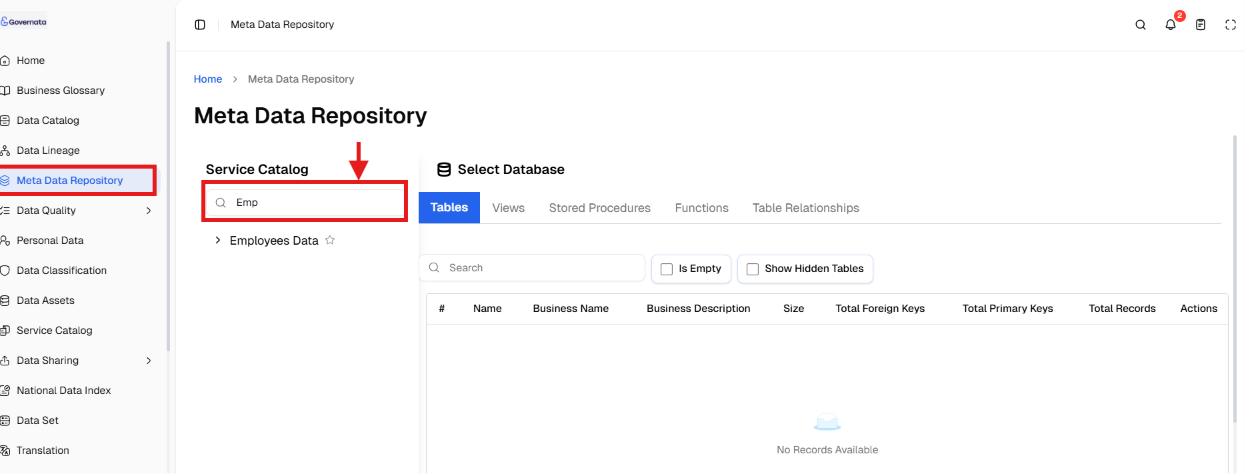
After selecting the Service Catalog, the associated databases are loaded.
Database Selection
After selecting the data source, the required database can be selected for browsing.
To do this:
- Navigate to the Select Database section.
- Browse available databases.
- Select the required database.
Once the database is selected, its associated tabs are activated.
Tables Tab
The Tables tab is used to view all actual tables within the selected database.
Figure (3): Tables tab
[Figure (3)]
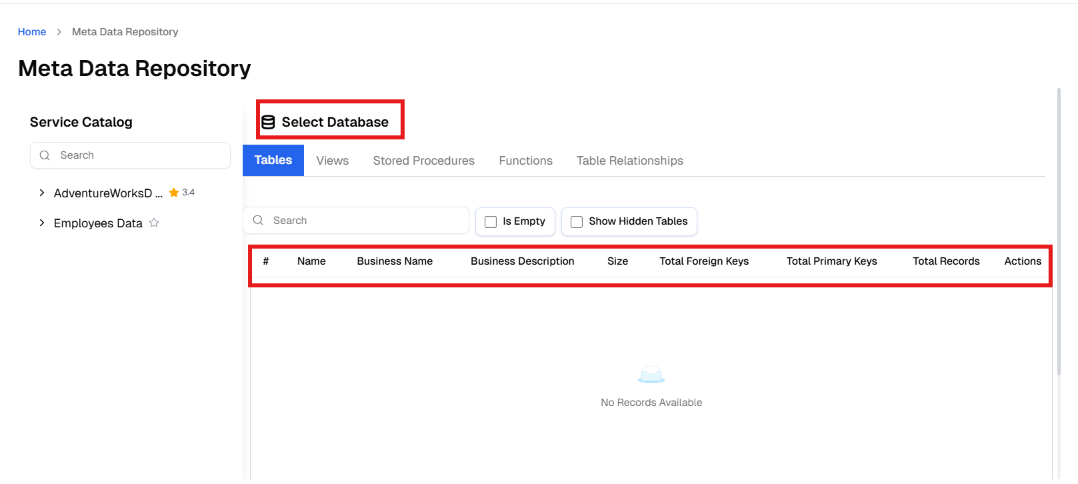
The tab displays information such as:
- Table name
- Business name
- Business description
- Table size
- Number of records
- Number of primary keys
- Number of foreign keys
- Table type
Searching within Tables
To search for a specific table:
- Navigate to the search field within the Tables tab.
- Enter the table name.
- Matching results are displayed.
Filtering Tables
To filter the displayed tables:
- Activate the Show Hidden Tables option if needed.
- Use the Filter Empty Tables option to display only tables that contain data.
As shown in Figure (4).
[Figure (4)]
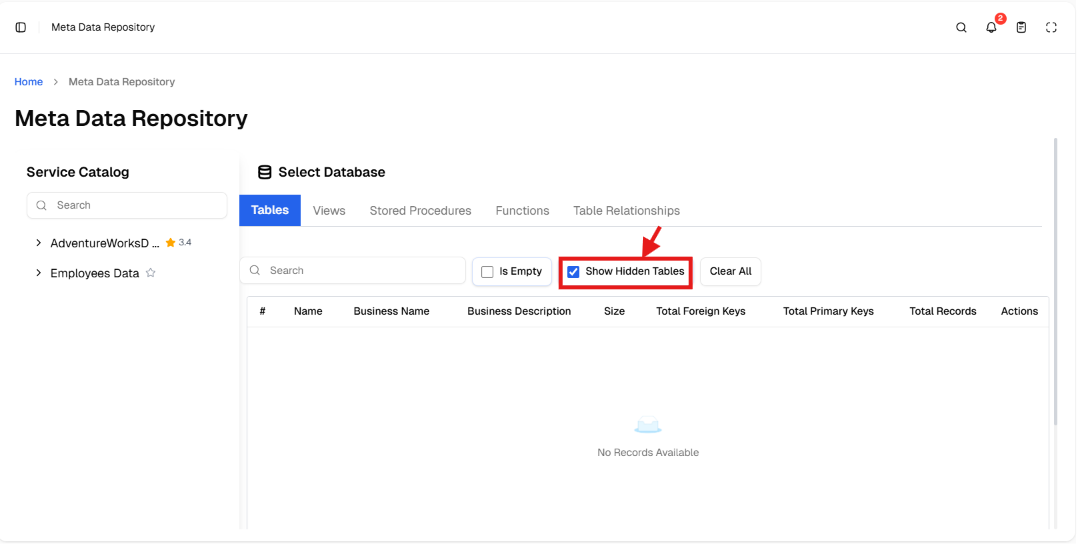
This helps facilitate browsing of large tables.
Virtual Tables Tab
This tab displays Virtual Tables — logical tables used to represent data without physically existing within the database.
The tab displays for each virtual table:
- Table name
- Business description
- Number of records
- Associated keys
As shown in Figure (5).
[Figure (5)]
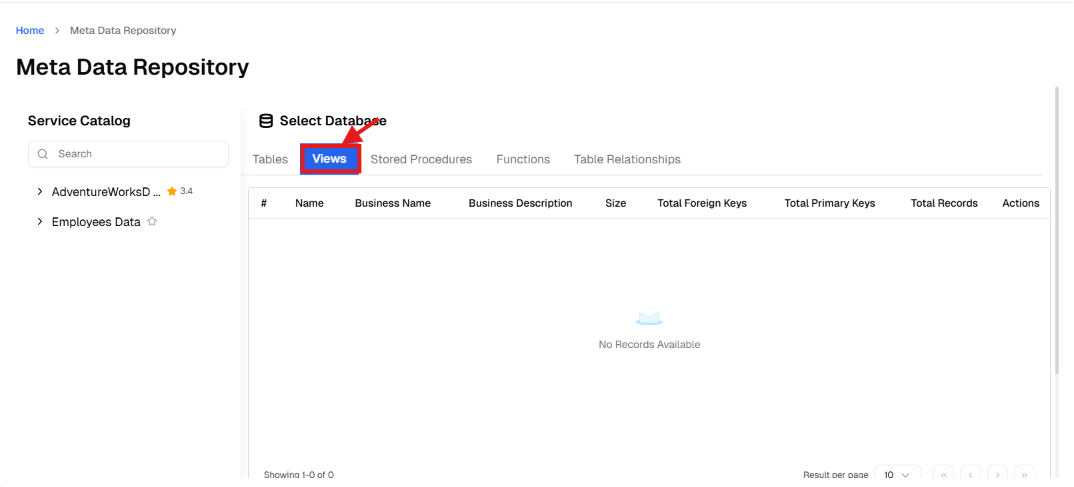
This tab helps document logical data models.
Stored Procedures Tab
This tab displays Stored Procedures within the database.
It includes for each procedure:
- Procedure name
- Procedure description
- Database engine
- Procedure status
- Procedure type
As shown in Figure (6).
[Figure (6)]
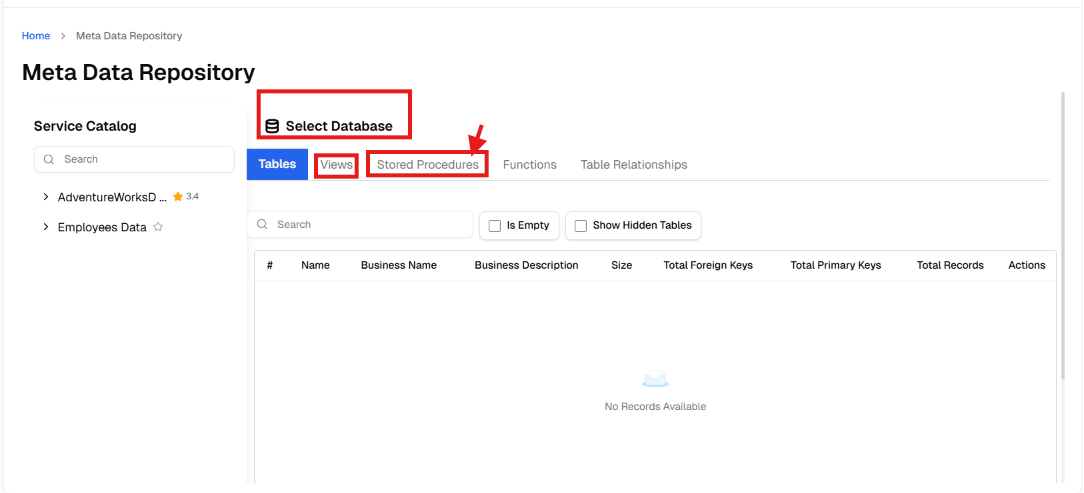
This section helps understand the operations executed on data within the database.
Functions Tab
This tab displays the Functions defined within the database.
It displays for each function:
- Function name
- Function description
- Database engine
- Function status
- Function type
As shown in Figure (7).
[Figure (7)]
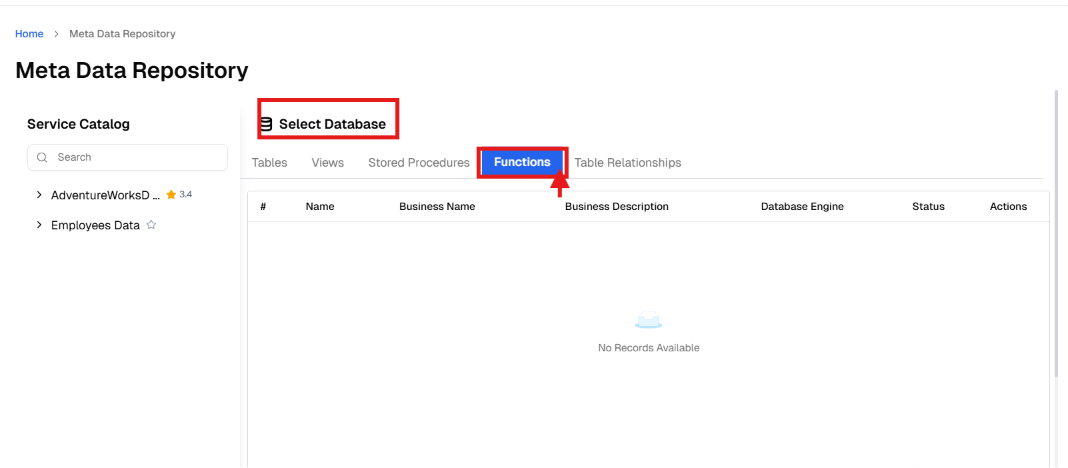
These functions are typically used to perform computational or transformational operations on data.
Table Relationships Tab
This tab is used to view relationships between tables within the database.
It displays:
- Tables linked to each other
- Relationship type
- Keys used in the link
Through this tab, the user can:
- Browse existing relationships
- Add a new relationship between tables
As shown in Figure (8).
[Figure (8)]
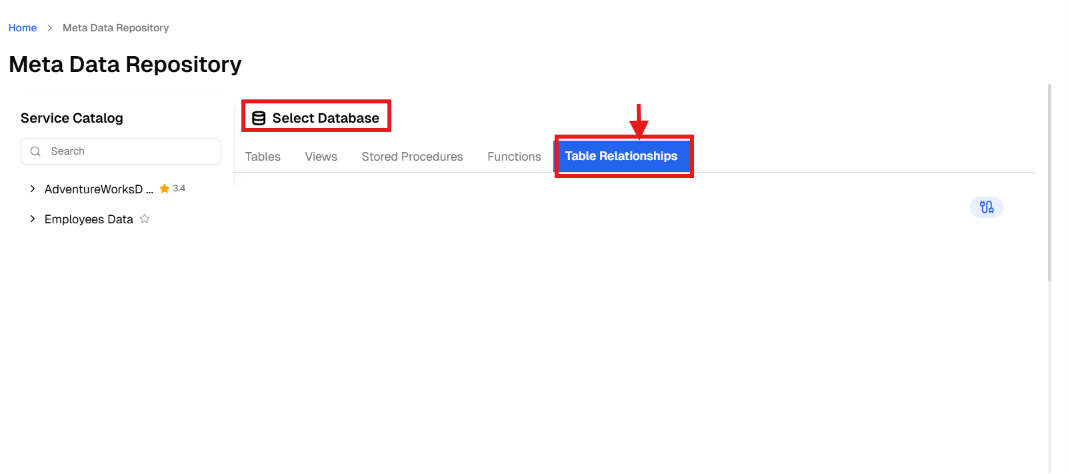
This helps understand the flow of data between different tables.
|
📌 Note All previous tabs depend on the selected database. Therefore, when the database is changed, all displayed information is automatically updated. |
This module allows the user to manage and browse metadata components through the use of different tabs within the interface.
This includes:
- Browsing tables
- Reviewing virtual tables
- Reviewing stored procedures
- Reviewing functions
- Understanding relationships between tables
As shown in Figure (9).
[Figure (9)]
10. Common Usage Scenarios
Scenario 1: Exploring Tables within a Database
Situation
A data analyst wants to browse tables within a specific database.
Steps
- Navigate to the Metadata Store.
- Select the appropriate Service Catalog.
- Select the required database.
- Open the Tables tab.
- Use search to find the required table.
Outcome
Tables and their basic information can be browsed easily.
Scenario 2: Understanding the Relationship Between Two Tables
Situation
A data engineer wants to know the relationship between two tables within the database.
Steps
- Navigate to the Metadata Store.
- Select the required database.
- Open the Table Relationships tab.
- Search for the linked tables.
- Review the relationship type and keys used.
Outcome
How the tables are linked within the database is understood.
Scenario 3: Reviewing Stored Procedures Related to Data
Situation
A technical team wants to know the procedures that affect data within the database.
Steps
- Navigate to the Metadata Store.
- Select the required database.
- Open the Stored Procedures tab.
- Review the procedure description and its function.
Outcome
The operations executed on data within the database can be understood.
11. PermissionsThe ability to use the Metadata Store module depends on the permissions granted to the user within Governata.
Some users may be able to:
- Browse databases and tables only
- Review relationships between tables
- Add or edit relationships
- Document tables or stored procedures
Some functions may also be restricted based on access permissions to:
- Data sources
- Associated databases
- Other system elements
If some options such as adding a new relationship or editing information are not visible, the reason may be insufficient permissions.
12. Best PracticesTo get the best use from the Metadata Store, the following is recommended:
- Select the correct Service Catalog before browsing data
- Document the business name and business description for each table
- Review hidden or empty tables periodically
- Document relationships between tables accurately
- Use virtual tables to represent logical models
- Review stored procedures and functions periodically
It is also recommended to use the store with other modules such as:
- Data Catalog
- Data Classification
- Personal Data
For a comprehensive understanding of data within the organization.
13. Frequently Asked Questions
What is the purpose of the Metadata Store?
It provides a technical reference that helps understand the technical structure of databases without direct access to them.
What is the difference between the Metadata Store and the Data Catalog?
The Metadata Store focuses on technical architecture, while the Data Catalog focuses on describing data from a business perspective.
Does using the store affect actual databases?
No, the store only displays metadata without executing any changes to databases.
When are virtual tables used?
Virtual tables are used when a logical data model that does not physically exist within the database needs to be represented.
Why is it important to document relationships between tables?
Because they help understand data interconnectivity and analyze the impact when changes are made to databases.