
User Manual – Business Glossary
1. Overview
Business Glossary in Governata is used to document business terms and performance indicators in a structured and unified manner.
It provides a central reference that helps users understand the terms used within the organization and link them to various governance elements such as:
- Data
- Services
- Classifications
The Business Glossary in Governata aims to document business terms and performance indicators in a structured and unified manner, which helps to:
- Standardize understanding of terms within the organization
- Reduce differences in interpretation between departments
- Link terms to data and indicators
- Support data governance and improve its use
This manual covers how to use the Business Glossary module in Governata, including:
- Exploring terms and indicators
- Organizing folders and domains
- Adding terms and performance indicators
- Managing relationships between terms
- Managing permissions linked to the glossary
|
Term |
Definition |
|
Business Term |
A concept used within the organization that requires a unified definition |
|
Performance Indicator (KPI) |
A metric used to evaluate performance or achieve a specific goal |
|
Domain |
A sub-category that groups similar terms together |
|
Folder |
The top-level category that contains multiple domains |
Difference Between the Business Glossary and the Data Catalog
Some confuse the Business Glossary with the Data Catalog, but each serves a different role within the data governance ecosystem.
The Business Glossary is used to standardize the understanding of terms and indicators within the organization, while the Data Catalog is used to document actual data sources and their technical structure.
The following table illustrates the difference:
|
Element |
Business Glossary |
Data Catalog |
|
Purpose |
Standardize the definition of business terms and indicators |
Document and organize data sources within systems |
|
Content |
Business terms, definitions, indicators, calculation rules |
Data sources, tables, columns, metadata |
|
Nature of Information |
Business concepts and meanings understandable to business teams |
Technical information linked to data and systems |
|
Users |
Business teams and management |
Data, analysis, and IT teams |
|
Example |
Definition of the term "Annual Revenue" |
A table containing revenue data inside the database |
Relationship Between Them
The Business Glossary is often linked to the Data Catalog within data governance systems like Governata, allowing users to navigate from a term definition to the data source it is derived from.
This linkage helps to:
- Improve data understanding within the organization
- Reduce misinterpretation of indicators
- Enhance transparency between business and data teams
The Business Glossary is used within the organization by several functional roles, where each
role contributes to managing terms and indicators and ensuring their accuracy and quality.
Key roles include:
Data Owner
Responsible for approving the terms and indicators linked to their domain within the organization.
Data Steward
Manages terms, reviews them, and ensures the accuracy of definitions and relationships between them.
Data Analysts
Use the Business Glossary to understand the definition of terms and indicators before using data in analysis or report preparation.
Governance Teams
Oversee the organization of terms and ensure they align with data governance policies within the organization.
The distribution of roles and responsibilities helps ensure term quality and enhance the effective use of the Business Glossary within the organization.
6. TargetAudienceThis manual targets users who work with terms and indicators within the organization, such as:
- Data Analysts
- Data Owners
- Data Stewards
- Governance Teams
- Users who want to understand terms before using data
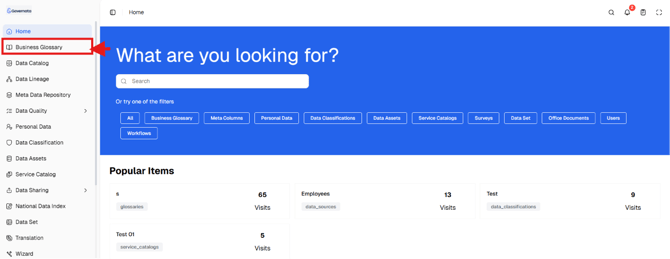
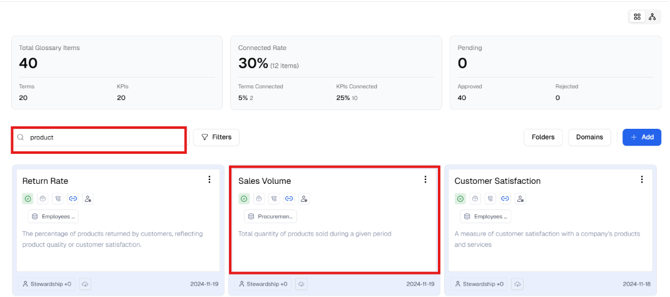
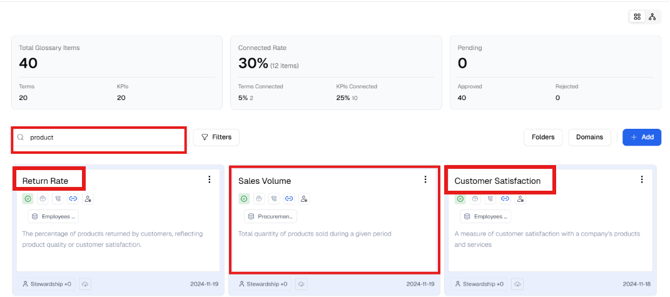
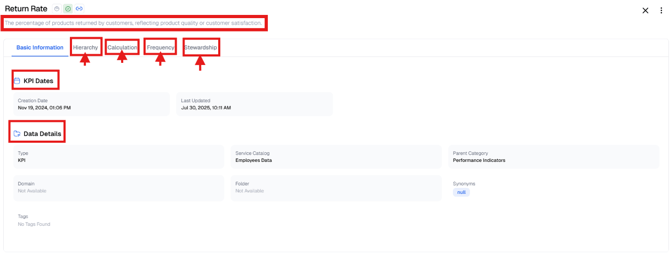
To access a term or indicator quickly, here are 5 essential steps:
1. Navigate to Business Glossary from the side menu.
[Figure (1)]
[Figure (2)]
[Figure (3)]
5. Review the term definition and its associated domain.
[Figure (4)]
Tip
It is recommended to use short keywords when searching to get more accurate results.
8. MainPage OverviewBusiness Glossary Main Page
When entering the Business Glossary, the main page displays a general overview of the glossary contents.
This page includes:
- Summary indicators
- Folders and domains
- Term and indicator cards
- Search and filtering tools
Figure (5): Business Glossary main page
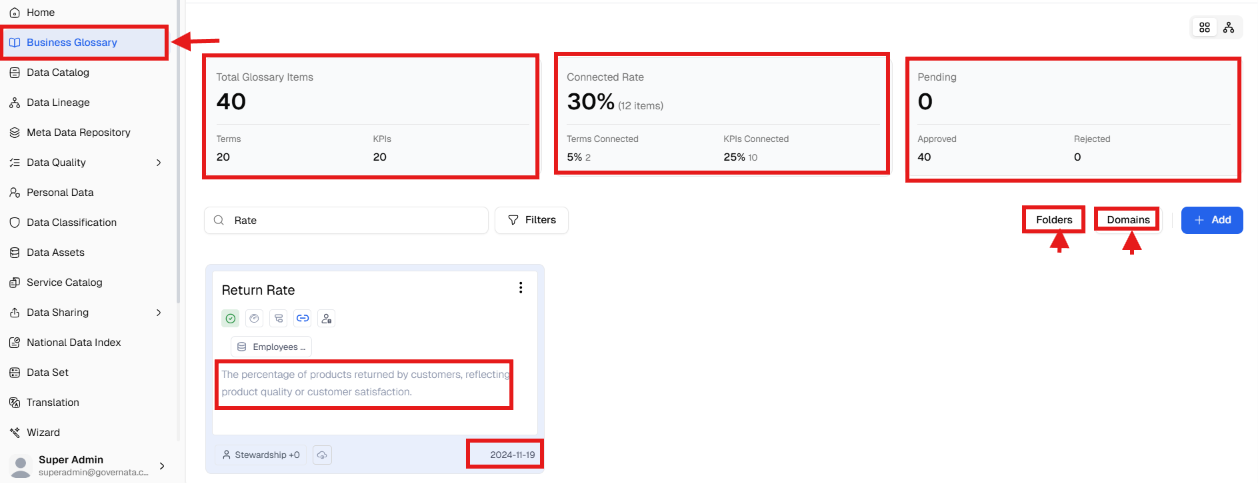
Glossary Indicators
A bar at the top of the page contains numerical indicators showing the state of the glossary.
Number of Business Terms
Shows the total number of terms and performance indicators within the glossary.
Connected Terms
Shows the number of terms linked to other elements such as:
- Data
- Services
- Other terms
Linkage Rate
Represents the relationship between linked terms and the total terms.
The higher the rate, the more mature the use of the glossary within the organization.
Organizing the Business Glossary
Before adding terms, the organizational structure of the glossary must be set up.
The structure consists of:
Folder → Domain → Terms / Performance Indicators
Folder
A folder represents the main specialization within the organization, such as:
1. Sales2.Finance
3.Human Resources
4.Regulation
Folders are used to group terms and indicators related to the same domain.
Adding a New Folder
To add a folder:
1. Navigate to Business Glossary.2. Open the Folders tab.
3. Click Add Folder.
[Figure (6)]
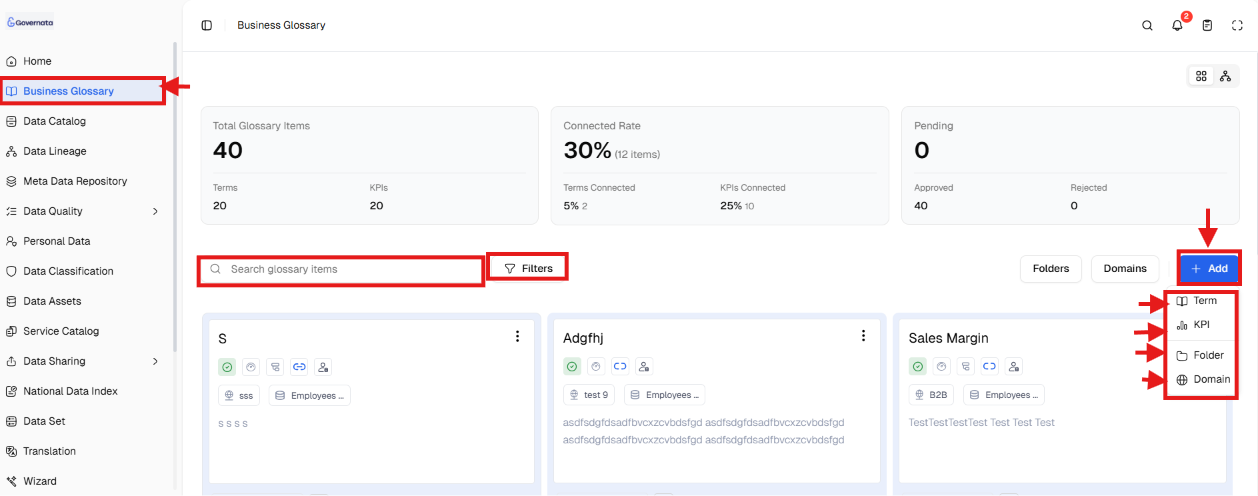
4. Enter the folder name.
5. Click Save.
[Figure (7)]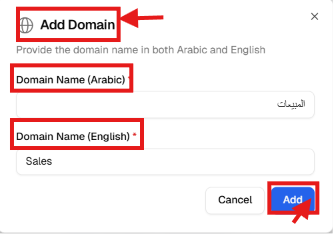
Domain
A domain is a sub-category within a folder that helps organize terms.
Example:
Folder: Sales
Domains:
1. Wholesale Sales2. Retail Sales
A domain is created following the same steps above, changing the selection from "Folder" to "Domain".
Using domains helps to:
1. Organize terms
2. Facilitate search
3. Reduce duplication
9. ManagingTerms and Indicators
Adding a Business Term
To add a new term:
1. Navigate to Business Glossary.2. Click Add (+).
[Figure (8)]
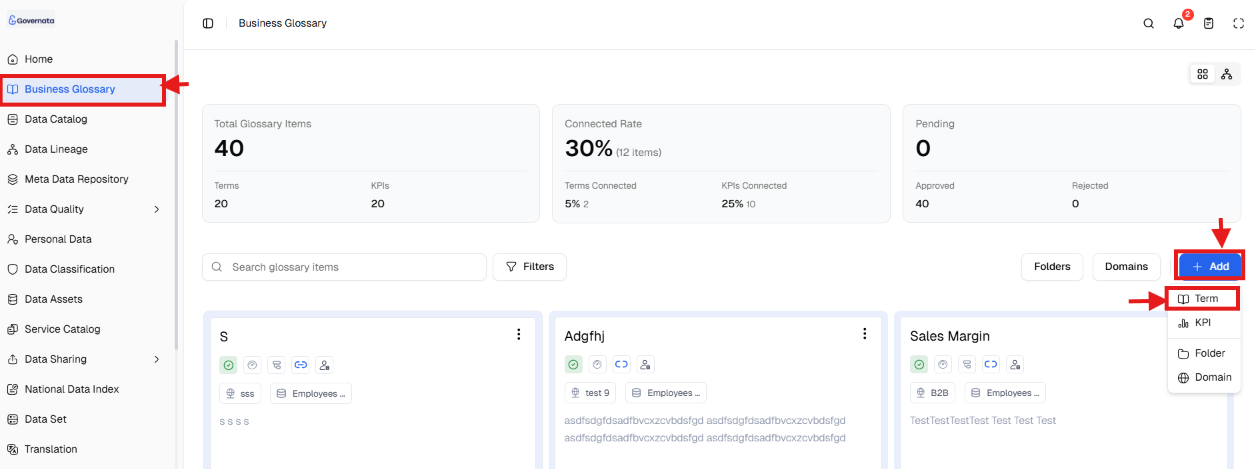
- Term name
- Term definition
- Domain
- Main category
[Figure (9)]
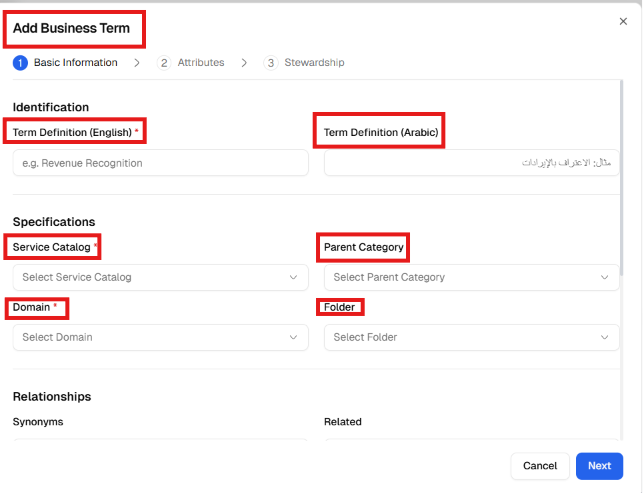
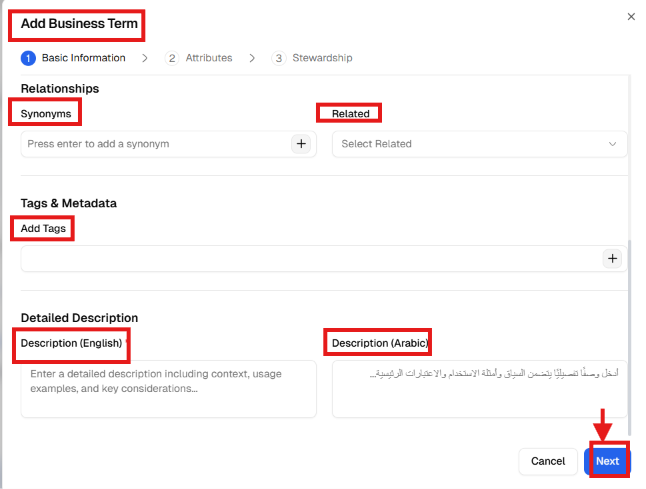
- Folder
- Synonyms
- Related terms
- Term description
- Click Next to save the term.
[Figure (10)]
Usage Scenario
Situation
A user wants to document a new term within the organization.
Steps
-
Navigate to Business Glossary.
- 2. Click Add (+).
- Select Business Term.
- Enter the term name and definition.
- Set the domain and folder.
- Save the term.
Outcome
The term becomes available to all users within the organization.
Adding a Performance Indicator (KPI)
A performance indicator may include the following information:
- Calculation formula
- Data source
- Measurement frequency
- Responsible party
- Target value
To add a performance indicator:
-
Navigate to Business Glossary.
- Click Add (+).
- Select Performance Indicator.
- Enter the basic data.
-
Enter the additional information.
- Click Next to save the indicator.
The same steps from Figure (9) to Figure (11) apply, selecting "Performance Indicator" instead of "Term".
Viewing Terms and Indicators
Terms and indicators are displayed as cards.
Each card contains:
- Term or indicator name
- Element type
- Status icons
- Personal data indicator
- Creation date
- Stewardship information
Search and Filtering
To search for a term:
- Use the search field.
- Or use the filters such as: Service Catalog, Domain, Folder, Type.
Managing Terms and Indicators
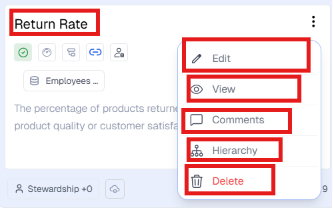
|
Action |
Description |
|
View |
Display term details |
|
Edit |
Update information |
|
Comments |
Add notes |
|
Structure |
View relationships |
|
Delete |
Delete the term |
Editing a Term
- Click the options menu (⋮).
- Select Edit.
- Update the required information.
- Click Save.
Viewing Details
To view the details of a term:
- Click the options menu (⋮).
- Select View.
A page appears containing:
- Basic information
- Structure
- Calculation (for indicators)
- Frequency
- Stewardship
[Figure (11)]
The ability to perform operations within the Business Glossary depends on the permissions granted to the user within Governata.
Some users may be able to:
- View terms only
- Add new terms
- Edit terms
- Delete terms
If some options such as Edit or Delete are not visible, the reason may be insufficient permissions.
Note
Some actions may not appear if the user does not have the required permissions.
Term Approval Cycle
Terms typically go through the following stages:
Term Creation → Data Steward Review → Data Owner Approval → Term Published in Glossary
This process helps ensure term quality before they are published.
11. BestPracticesTo ensure effective use of the Business Glossary:
- Create folders and domains first
- Use clear definitions for terms
- Avoid duplicating terms
- Link terms to data whenever possible
- Review the glossary periodically
What is the difference between a business term and a performance indicator?
A business term defines a concept within the organization, while a performance indicator is used to measure performance or a specific outcome.
Can a term be added without linking it to other elements?
Yes, but it is preferable to link the term to other elements to increase its value within the system.