
The Data Catalog is the central reference for discovering and understanding data assets within Governata.
It provides a unified view of data sources, tables, and columns — clarifying the sensitivity level of the data, whether it contains personal data, and enabling data lineage tracking and quality review.
The Data Catalog helps users to:
- Discover data within the organization
- Understand the structure of tables and columns
-
Know the data classification and sensitivity level
-
Track the data path from source to final use
2. System Objectives
The Data Catalog enables users to understand the data available within the organization in a clear and organized manner.
This helps to:
-
Document data assets within the organization
- Facilitate access to various data sources
- Improve understanding of relationships between tables and data
-
Support data governance and quality initiatives
This manual covers how to use the Data Catalog module within Governata, including:
- Searching for data elements
- Browsing tables and columns
- Understanding data structure and relationships
- Tracking data lineage
- Reviewing policies and procedures linked to data
Data Element
Any entity within the Data Catalog such as a data source, table, column, term, or indicator.
Data Source
The system or database from which data is retrieved.
Data Lineage
The path that data takes from its original source until it is used in reports or various systems.
5. Roles and Responsibilities
The Data Catalog uses several roles within the organization to ensure data is organized and managed correctly.
Key roles include:
Data Analysts
Use the Data Catalog to discover data sources and understand table structures before performing analysis.
Data Owners
Responsible for approving data and ensuring its accuracy and quality.
Data Stewards
Review metadata and ensure it aligns with governance policies.
Governance & Compliance Teams
Use the Data Catalog to review data classification and sensitivity levels.
6. Target Audience
This manual targets users who work with data within the organization, such as:
- Data Analysts
- Data Owners
- Data Stewards
- Governance & Compliance Teams
- Users who want to explore data before using it
To quickly explore a data element:
-
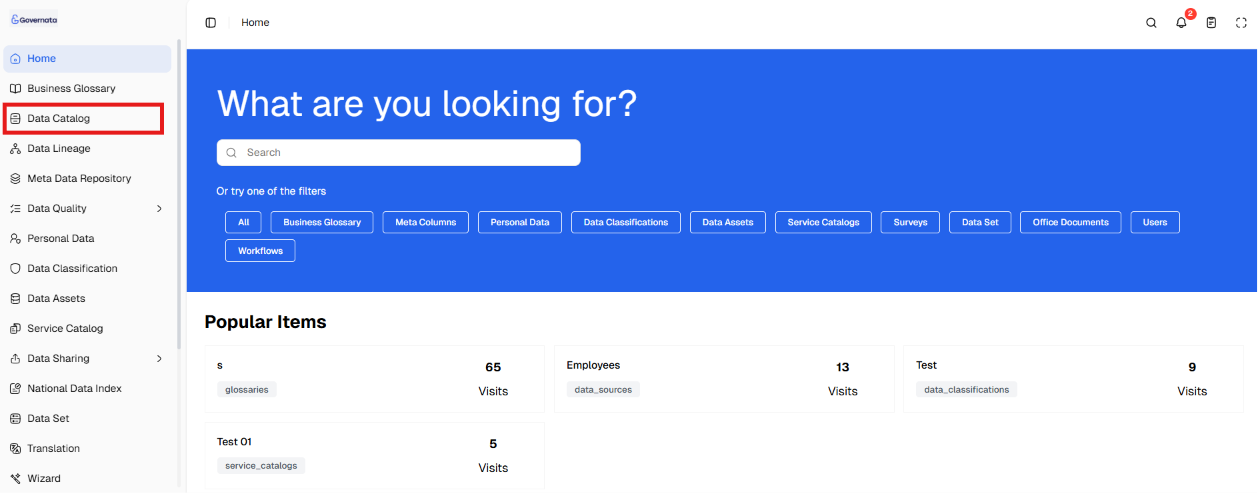
Navigate to Data Catalog from the side menu.
[Figure (1)]
-
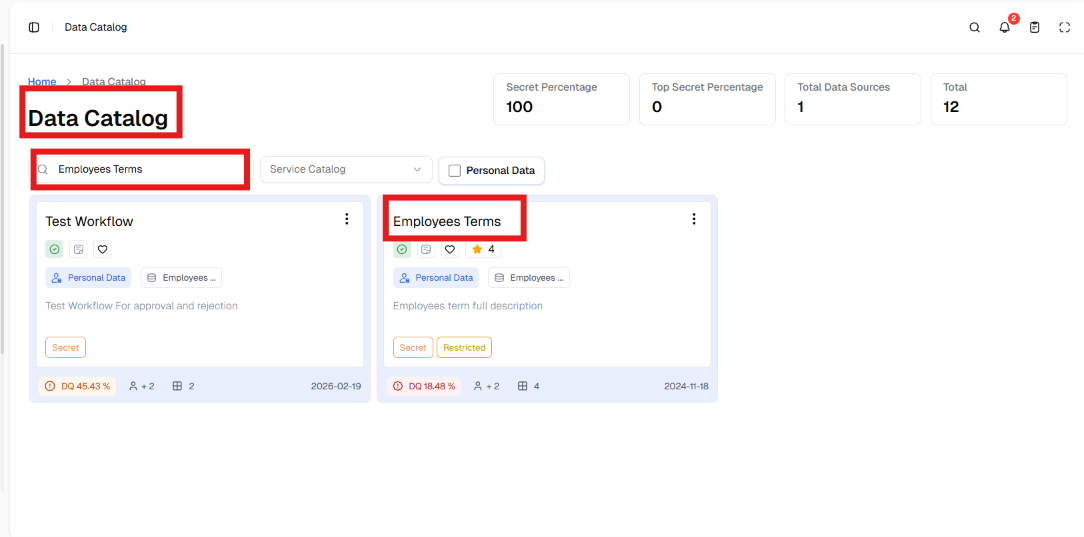
Use the search field to find the desired element.
[Figure (2)]
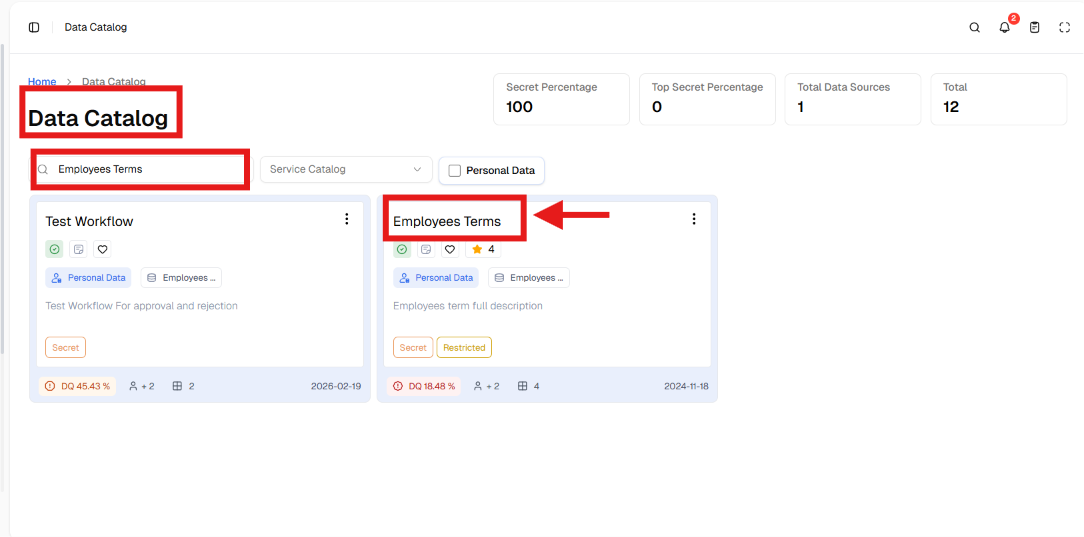
- Click on the data element card to open its details.
[Figure (3)]
-
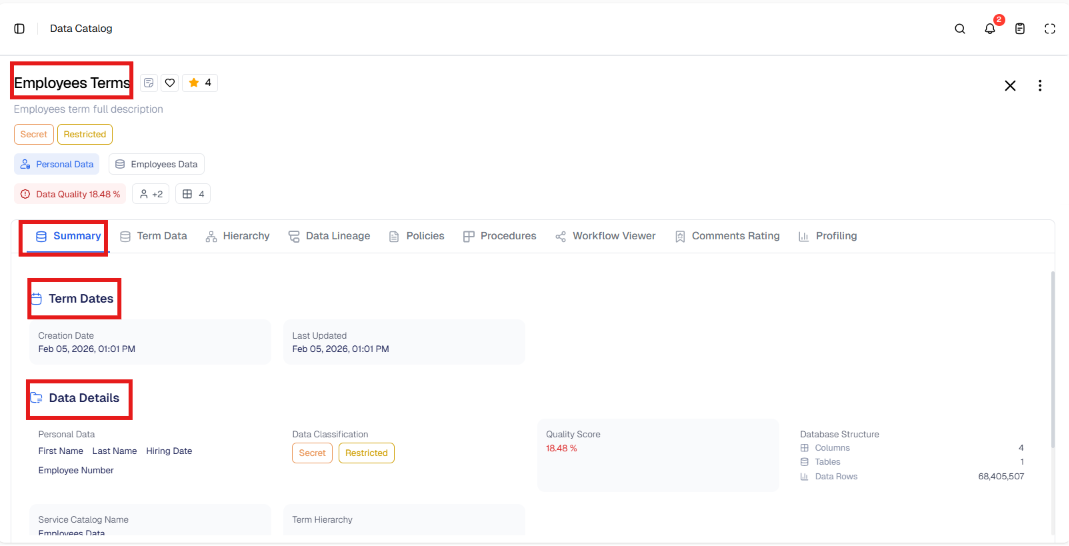
Review the Summary tab to understand the nature of the data.
[Figure (4)]
-
Navigate to Structure or Data Lineage as needed.
[Figure (5)]
8. Data Catalog Main Page
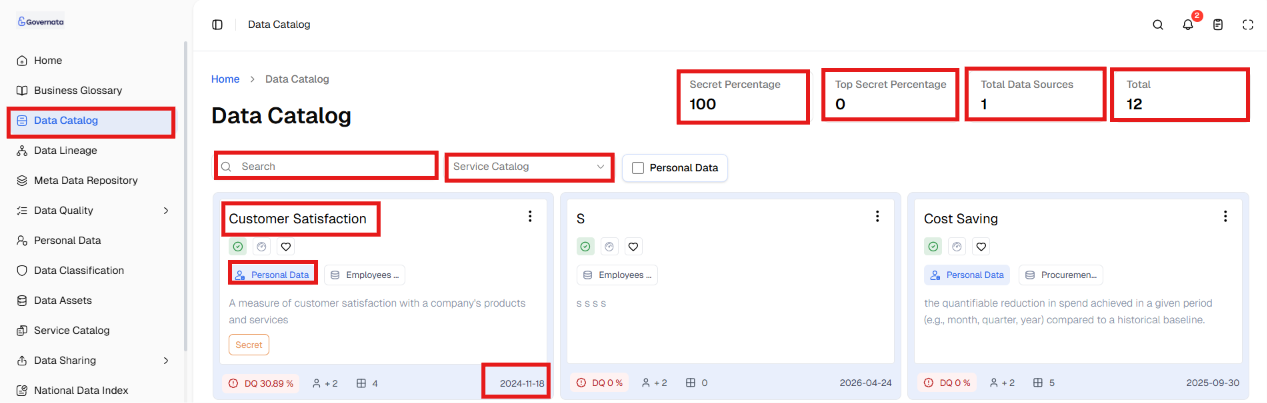
When entering the Data Catalog, the main page displays a general overview of the data elements.
The page includes:
- Data summary indicators
- Search and filtering tools
- Data element cards
Figure (6): Data Catalog main page
[Figure (6)]
Summary Indicators
The indicators at the top of the page display general information about the data, such as:
- Total Data Catalog elements
- Total data sources
- Percentage of confidential data
- Percentage of highly confidential data
These indicators help understand the size of data and its sensitivity level within the system.
[Figure (7)]

Searching for a Data Element
To search for a data element within the catalog:
- Navigate to Data Catalog from the side menu.
- Type the element name in the search field.
- Review the search results displayed as cards.
- Click the desired card to view its details.
See Figures (1) through (5).
|
📌 Tip It is recommended to use short keywords or the table name directly for more accurate search results within the Data Catalog. |
Filtering Data Elements
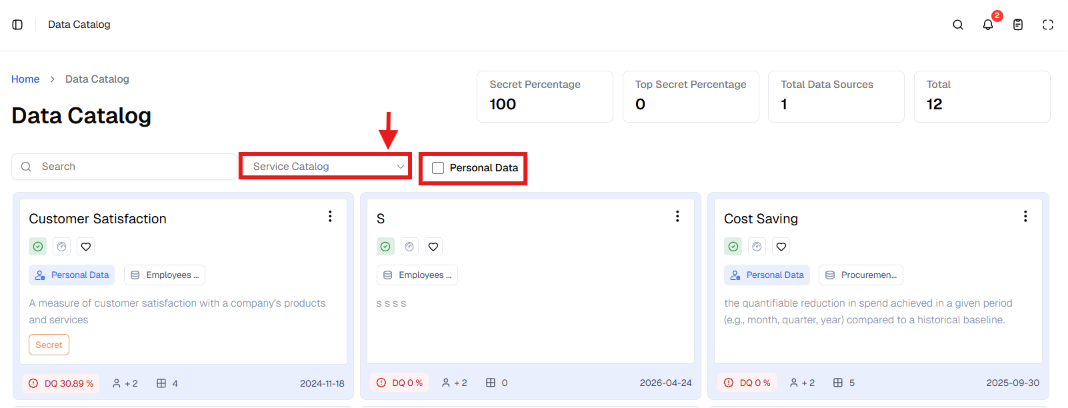
To filter the displayed data:
- Navigate to the filtering tools at the top of the page.
- Select the Personal Data filter to display only elements that contain personal data.
- Select the Service Catalog to set the display scope by service.
As shown in Figure (8).
[Figure (8)]
|
📌 Note Some data elements may not appear in search results if the user does not have the required permissions or if filters are active. |
Viewing Data Elements
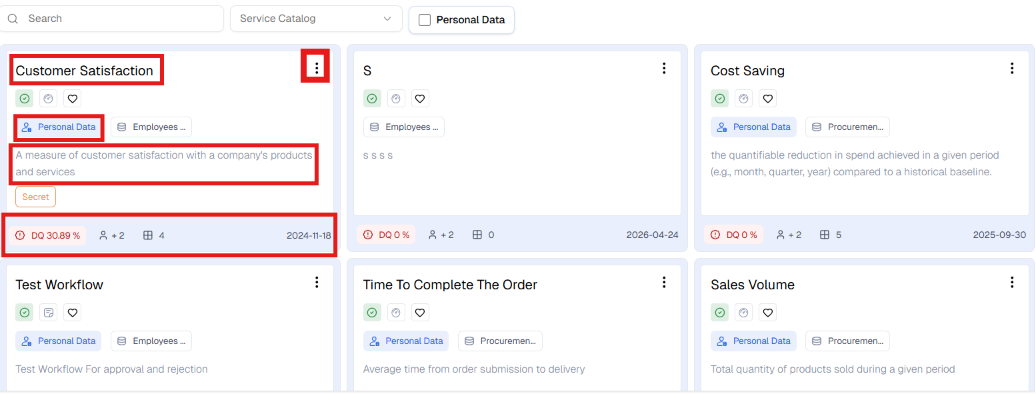
Data elements are displayed as cards.
Each card contains:
- Element name
- Element type
- Personal data indicator
- Confidentiality classification
- Element status
- Creation date
[Figure (9)]
Opening a Data Element
To open the details of a data element:
- Navigate to Data Catalog.
- Find the desired element through search or browsing.
- Click on the element card.
- The element detail screen opens.
See Figures (1) through (5).
Exploring Data Element Details
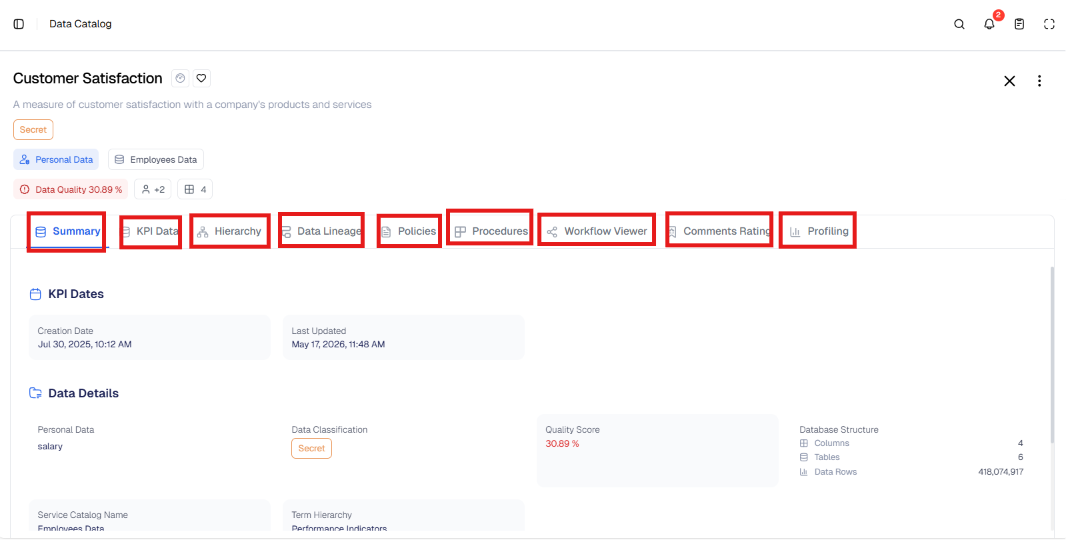
After opening an element, a screen appears containing several tabs.
[Figure (10)]
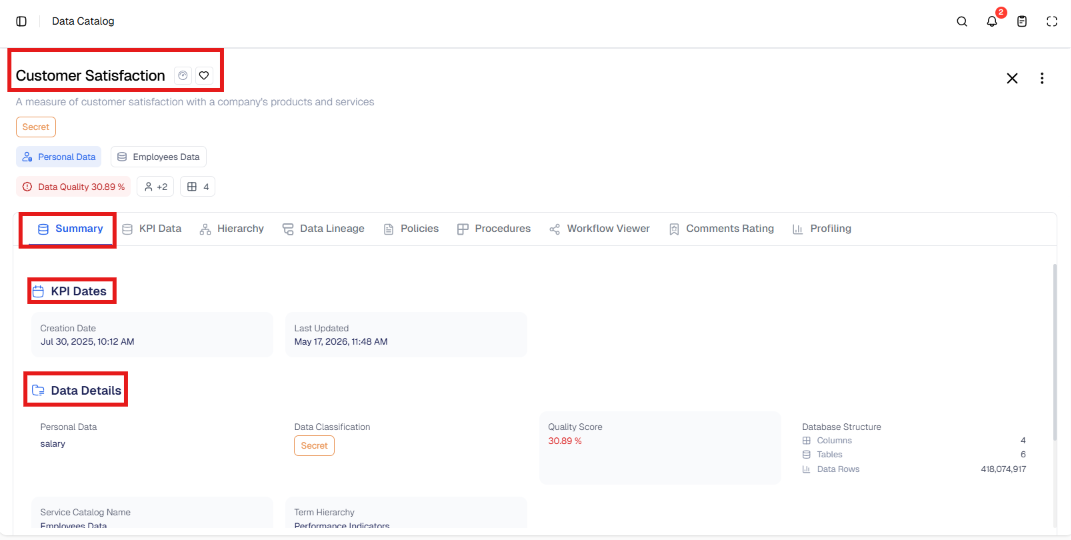
Summary Tab
To view the basic information about the element:
- Open the data element card.
- Navigate to the Summary tab.
This tab displays:
- Element description
- Data classification
- Sensitivity level
- Owning entity
- Data quality indicators
[Figure (11)]
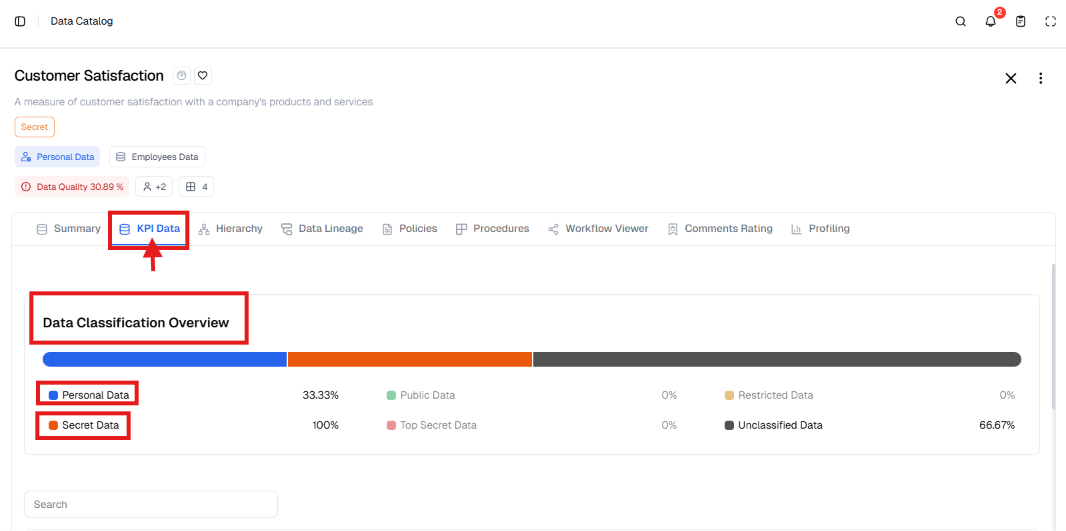
Element Data Tab
To view the identifying information:
- Open the data element.
- Navigate to the Element Data tab.
This tab contains:
- Official name
- Definition
- Element type (Indicator / Term)
- Purpose of use
- Scope of application
- Data classification
[Figure (12)]
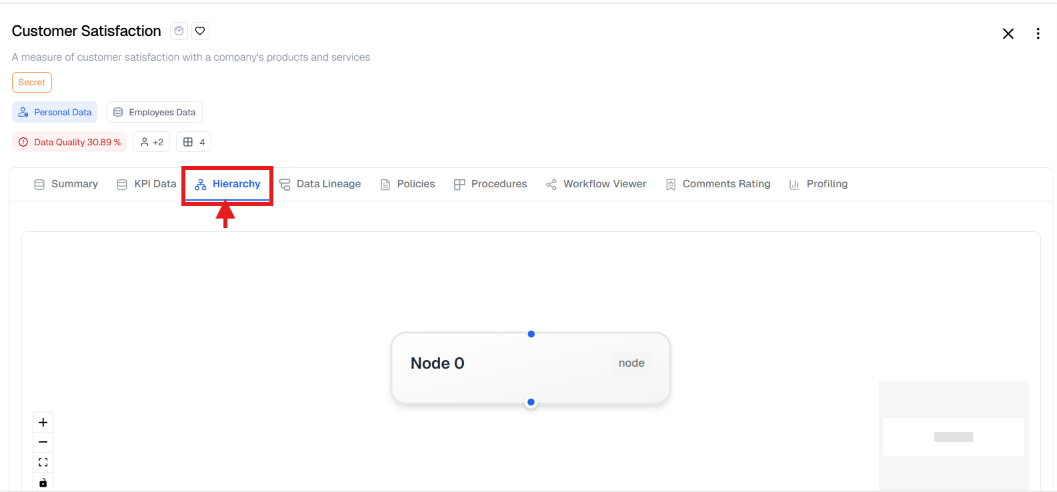
Structure Tab
To understand the data structure and relationships:
- Open the data element.
- Navigate to the Structure tab.
This tab displays the relationships between tables or linked elements.
[Figure (13)]
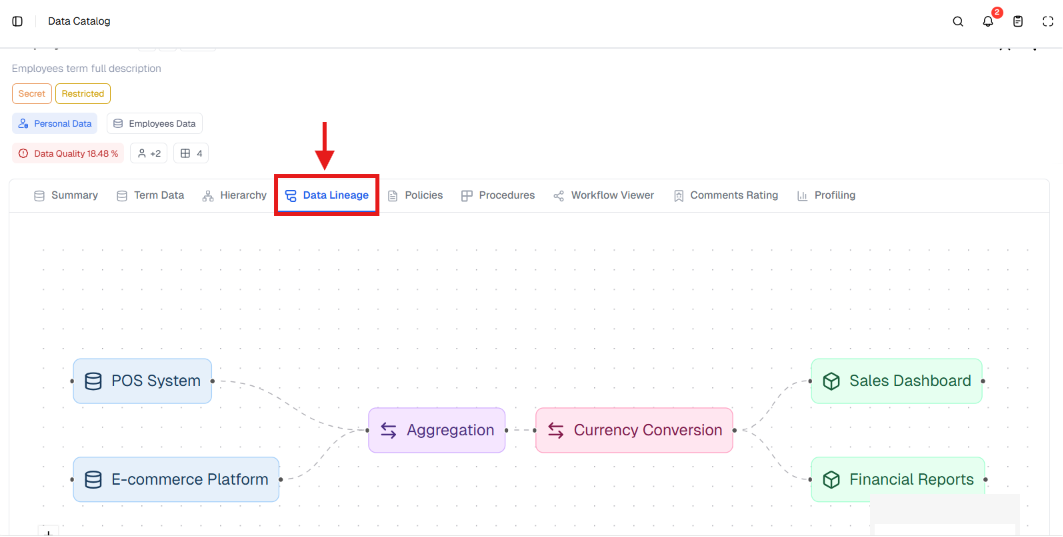
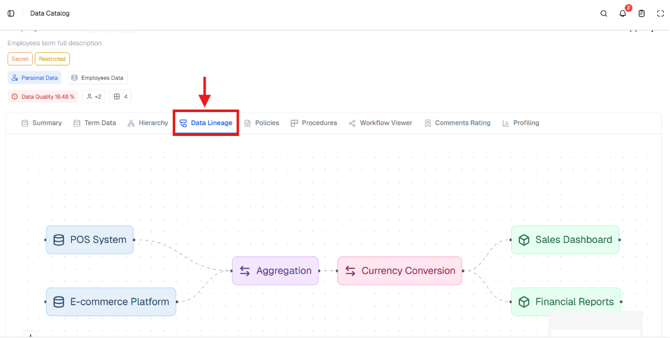
Data Lineage Tab
To track the data path:
- Open the data element.
- Navigate to the Data Lineage tab.
This tab displays:
- Data source
- Processing stages
- Transformations applied
- Systems that use the data
[Figure (14)]
|
📌 Tip It is recommended to review the Data Lineage tab before using any data in reports, in order to verify the data source and the transformations applied to it. |
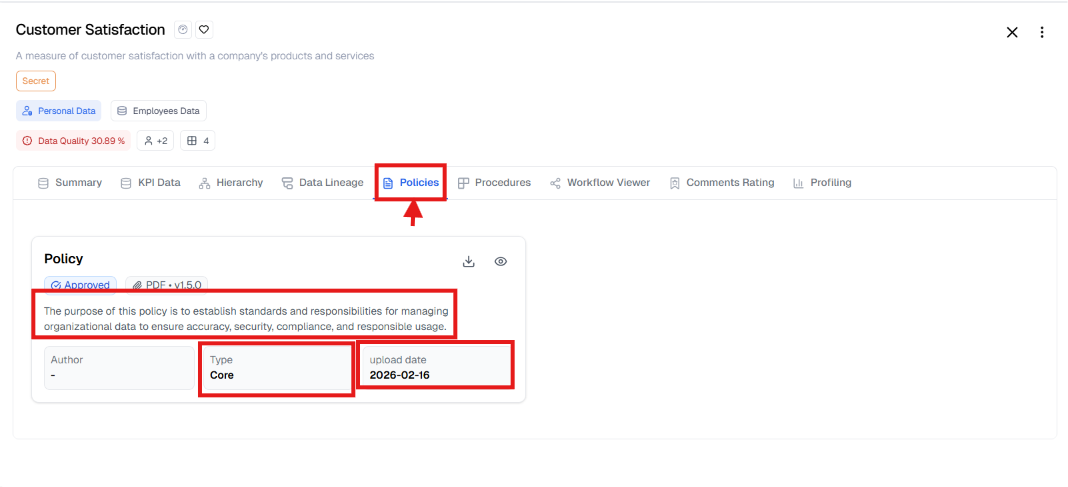
Policies Tab
To view the policies linked to the data:
- Open the data element.
- Navigate to the Policies tab.
From here, privacy and classification policies can be reviewed.
[Figure (15)]
Procedures Tab
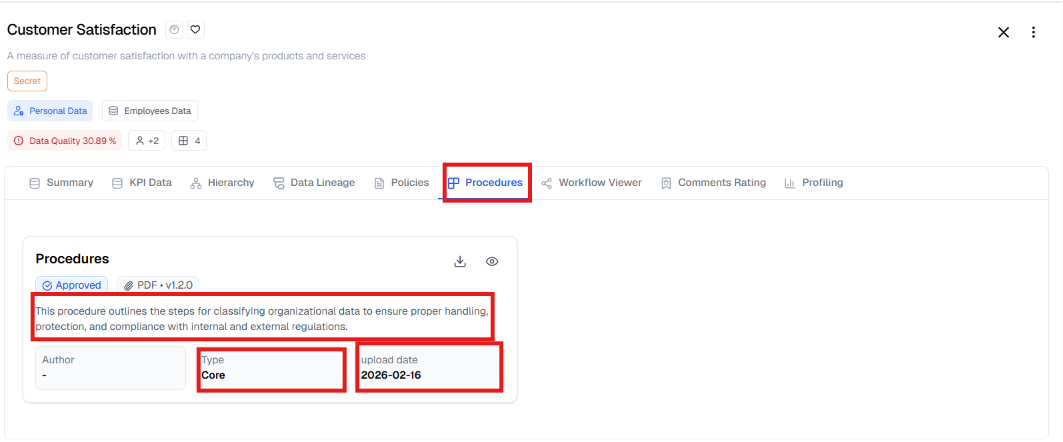
To view the operational procedures linked to the data:
- Open the data element.
- Navigate to the Procedures tab.
Displays the approved steps for handling the data.
As shown in Figure (16).
[Figure (16)]
Workflow Tab
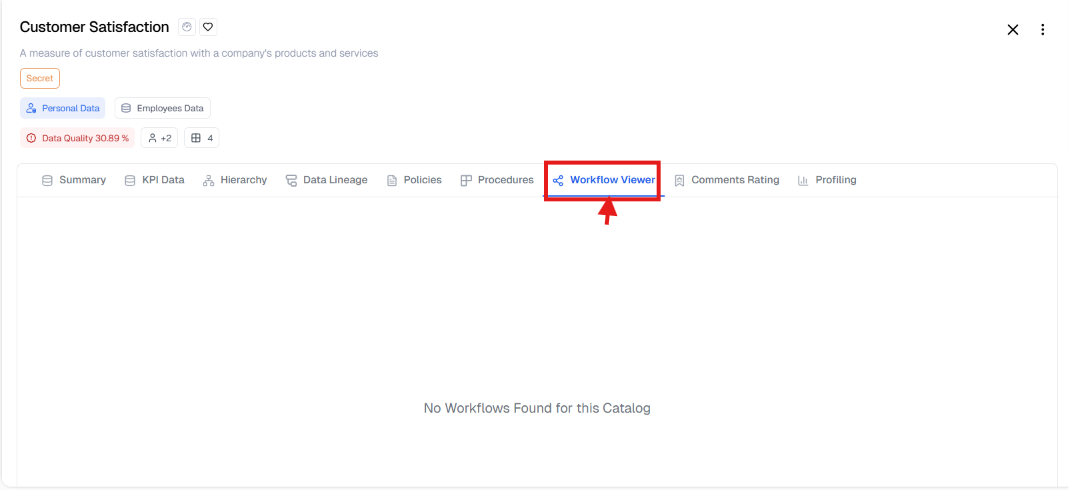
To view the data approval stages:
- Open the data element.
- Navigate to the Workflow tab.
Displays roles and approval points within the system.
As shown in Figure (17).
[Figure (17)
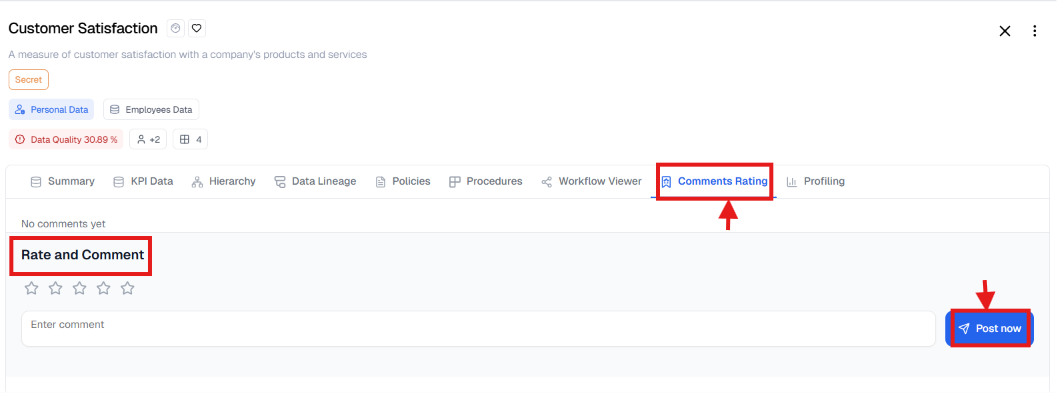
Ratings & Comments Tab
To add a rating or comment:
- Open the data element.
- Navigate to the Ratings & Comments tab.
- Add a rating or write a new comment.
As shown in Figure (18).
[Figure (18)]
- Managing a Data Element
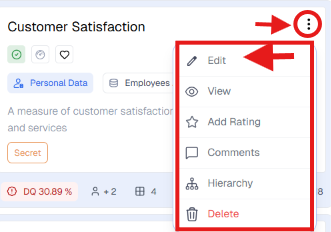
Multiple actions can be performed on an element through the options menu.
Editing a Data Element
To edit the information of a data element:
- Open the data element.
- Click the options menu (⋮).
- Select Edit.
- Update the required data.
- Click Save Changes.
As shown in Figure (19).
[Figure (19)]
Viewing a Data Element
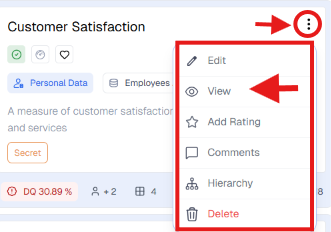
To view the element without editing:
- Open the options menu (⋮).
- Select View.
All information will be displayed in read-only mode.
As shown in Figure (20).
[Figure (20)]
Deleting a Data Element
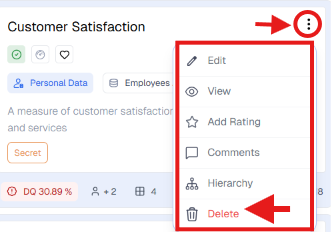
To delete a data element:
- Open the options menu (⋮).
- Select Delete.
- Confirm the deletion.
Availability of this option depends on the user permissions.
As shown in Figure (21).
[Figure (21)]
11. Access Permissions
The ability to perform actions within the Data Catalog depends on the permissions granted to the user within Governata.
Permissions include:
- View data
- Add elements
- Edit elements
- Delete elements
Access to certain data may also be restricted based on:
- Data classification level
- Whether the data contains personal data
- Access permissions for the data source
12. Common Usage Scenarios
This section illustrates some practical scenarios that can be executed using the Data Catalog within Governata.
Scenario 1: Searching for a Data Element Definition
Situation
A user wants to know the meaning of a data element used in a report or dashboard.
Steps
- Navigate to Data Catalog from the side menu.
- Use the search field to type the element name.
- Select the element from the displayed results.
- Open the data element card.
- Review the Summary or Element Data tab.
Outcome
The user obtains a clear definition of the data element and its basic information.
Scenario 2: Identifying the Data Source in a Report
Situation
A data analyst wants to know the source of a number that appears in a report.
Steps
- Navigate to Data Catalog.
- Search for the table name or indicator linked to the report.
- Open the element details.
- Navigate to the Data Lineage tab.
- Review: (a) Data source (b) Processing stages (c) Systems that use the data.
Outcome
The data source can be traced and the calculation method within the report can be understood.
Scenario 3: Verifying Data Sensitivity
Situation
A user wants to confirm that data does not contain sensitive information before using it.
Steps
- Navigate to Data Catalog.
- Search for the required table or column.
- Open the element details.
- Review: (a) Confidentiality classification (b) Personal data indicator.
Outcome
It can be determined whether the data contains sensitive information before using or sharing it.
Scenario 4: Understanding Data Structure within a Table
Situation
A user wants to understand how data is related within a specific table.
Steps
- Search for the table within the Data Catalog.
- Open the table details.
- Navigate to the Structure tab.
- Review the relationships between tables and linked elements.
Outcome
The user gets a clear picture of the data structure and the relationships within it.
12. Best Practices
- Start by reviewing the Summary tab
- Check the personal data status before use
- Use the Structure tab to understand data architecture
- Review Data Lineage to trace the data source
- Update metadata periodically
-
What is the difference between the Data Catalog and the Business Glossary?
The Data Catalog focuses on actual data assets such as data sources, tables, and columns, while the Business Glossary focuses on business definitions and terms. Both complement each other to support data governance.
-
How can I quickly check whether a data element contains personal data?
This can be checked directly from the data element card or from the Summary tab within the detail screen, where a clear indicator shows whether the data is personal or not.
- When should I use the Structure tab vs. the Data Lineage tab?
Use Structure when you want to understand the internal data structure (tables and columns).
Use Data Lineage when you need to trace the data's source, path, and impact on other systems.
-
Why can I not edit some data elements?
Edit capability depends on the granted permissions. If the permission is not available, only the View mode can be used to browse the information.
-
What is the best way to explore a data element before using it?
It is recommended to start with the Summary tab, then review the Element Data to understand the description, followed by checking the Structure and Data Lineage to evaluate the suitability of the data for the intended use.