
- Overview
Data Classification is one of the core components of Governata. It is designed to determine the sensitivity level of data and control how it is handled, ensuring data protection and organized usage within the organization.
Data Classification helps organizations manage data securely and systematically by defining different sensitivity levels and linking them to access and sharing policies.
2. System ObjectivesThe Data Classification system enables organizations to manage sensitive data in a structured manner that supports governance and compliance policies.
The system helps to:
- Protect sensitive data
- Comply with policies and regulatory requirements
- Reduce the risk of data leakage or misuse
- Support access and sharing decisions within the organization
It also allows the organization to:
- Create multiple data classifications
- Link each classification to a sensitivity level
- Track the impact of classification on records
- Monitor the proportion of sensitive data within the system
This manual covers how to use the Data Classification module within Governata, including:
- Browsing existing classifications
- Creating new data classifications
- Editing or deleting classifications
- Reviewing sensitive data
- Linking classifications to data sources
Data Classification
The process of organizing data into different sensitivity levels to determine the appropriate protection mechanisms.
Sensitivity Level
The degree of confidentiality associated with data, which determines how it can be accessed or shared.
Impact Assessment
An estimate of the potential impact in the event of data leakage or misuse.
5. Roles and ResponsibilitiesThe data classification process requires participation from several roles within the organization to ensure classification accuracy and data management quality.
Key roles include:
Data Owner
Responsible for approving classifications linked to data within their scope of work.
Data Steward
Reviews classifications and ensures they align with governance policies.
Governance & Compliance Teams
Monitor the application of data classification policies and ensure regulatory compliance.
Information Security Officers
Oversee the protection of sensitive data and ensure appropriate security controls are applied.
6. Target AudienceThis manual targets users who work with data classification within the organization, such as:
- Data Owners
- Data Stewards
- Governance & Compliance Teams
- Information Security Officers
- Users authorized to review and approve classifications
To quickly access a data classification, follow these steps:
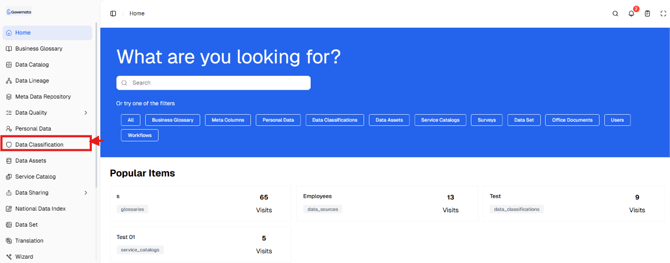
- Navigate to Data Classification from the side menu.
As shown in Figure (1).
[Figure (1)]
As shown in Figure (2).
[Figure (2)]
As shown in Figure (3).
[Figure (3)]
As shown in Figure (4).
[Figure (4)]
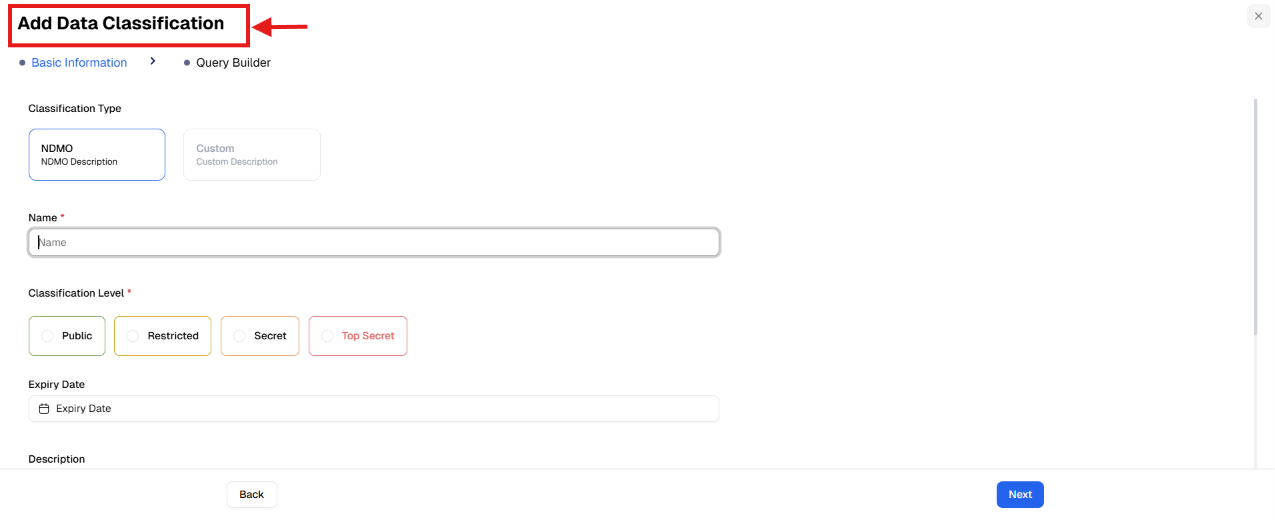
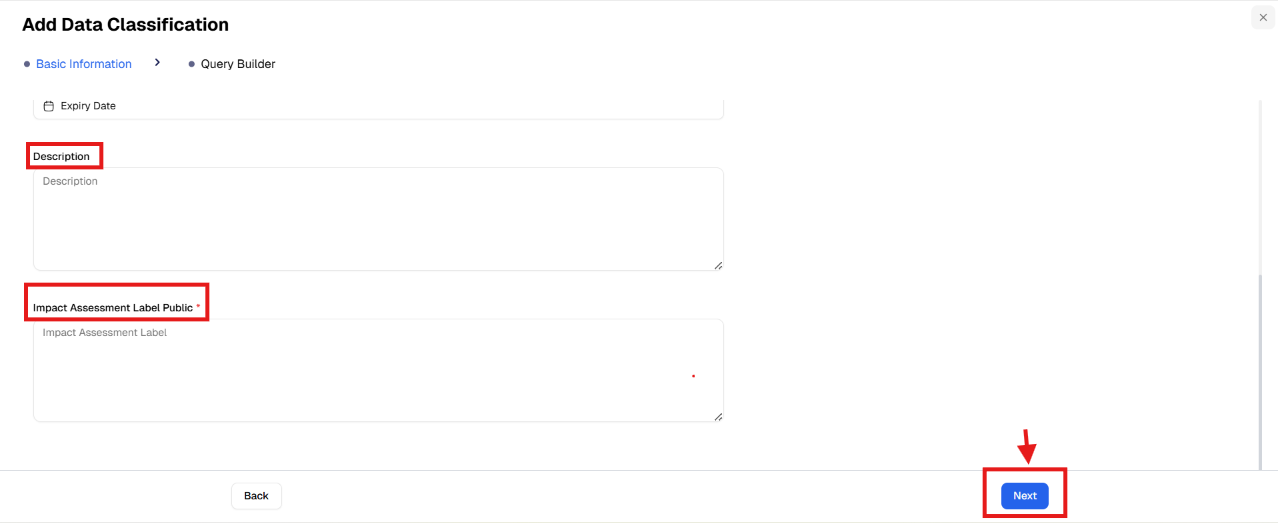
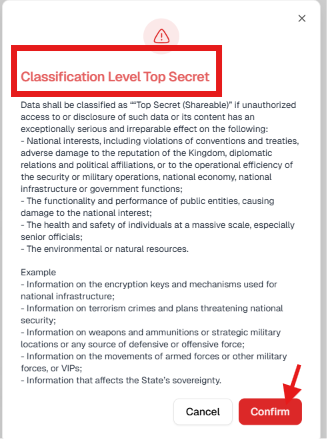
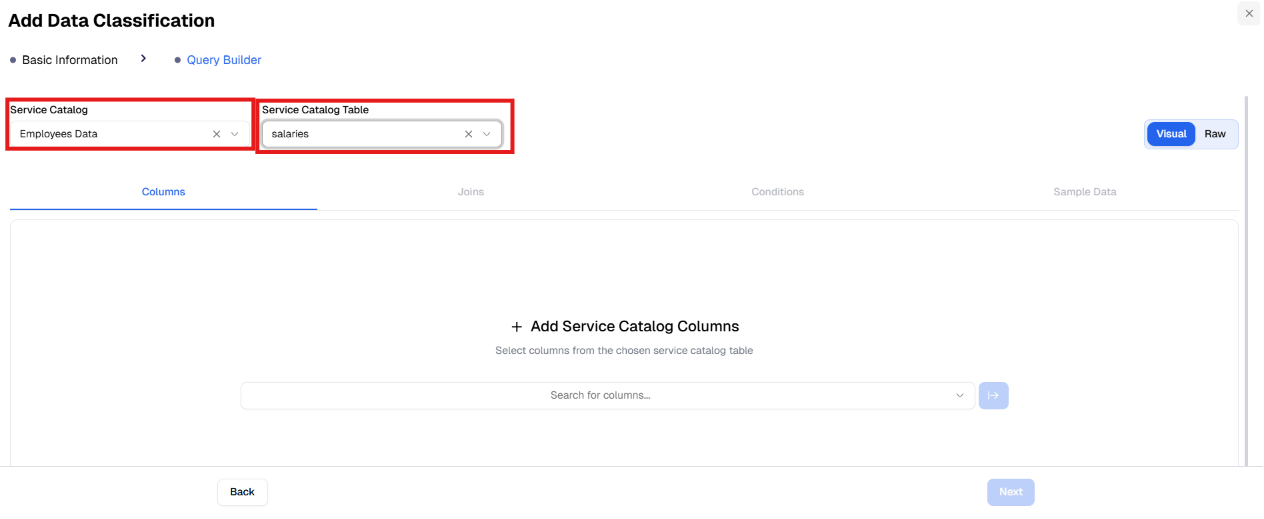
As shown in Figures (5), (6), (7), and (8).
[Figure (5)]
[Figure (6)]
[Figure (7)]
[Figure (8)]
|
📌 Tip It is recommended to review existing classifications before creating a new one to avoid duplication. |
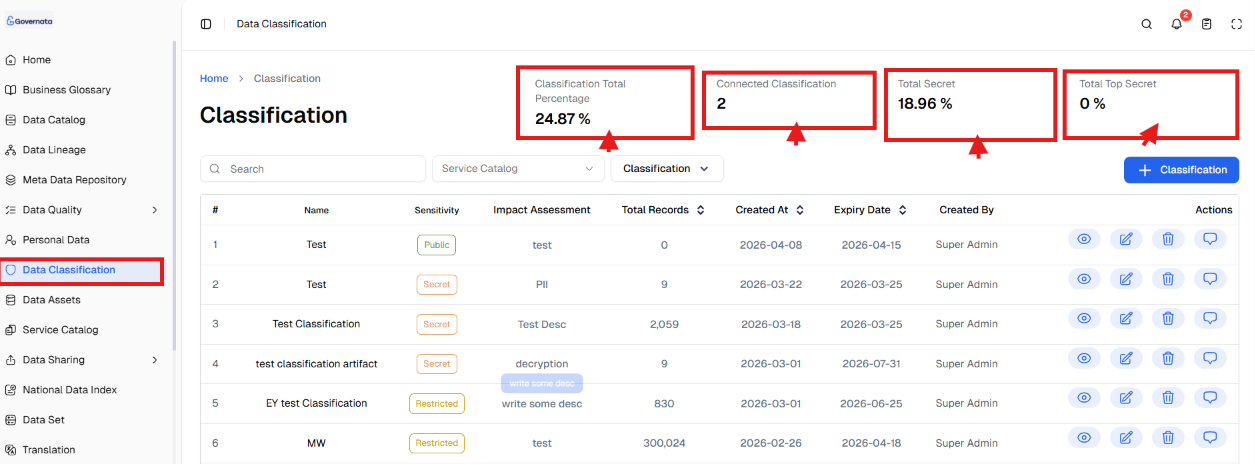
When entering the Data Classification module, the main page provides a general overview of the classifications within the system.
The page includes:
- Top-level performance indicators
- Search and filtering tools
- Data classification table
- + Classification button
As shown in Figure (9): Data Classification main page.
[Figure (9)]
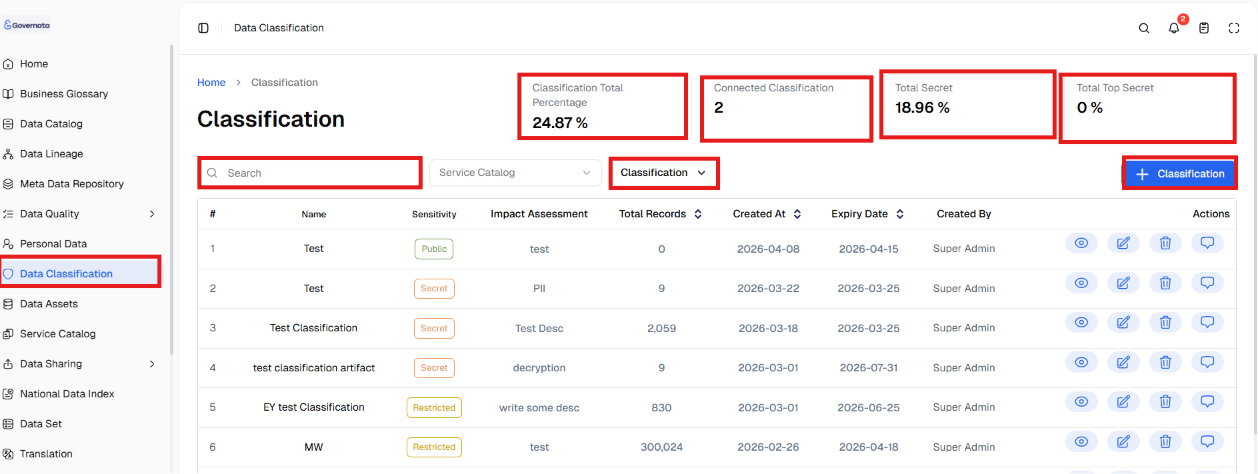
Top-Level Performance Indicators
A set of indicators at the top of the page shows the general status of data classifications within the system, such as:
Overall Classification Rate (%)
Shows the percentage of data that has been classified compared to the total data.
Number of Connected Classifications
Shows the number of classifications that are actually linked to records or data sources.
Full Confidentiality (%)
Shows the percentage of data classified under high confidentiality levels.
Total Maximum Confidentiality (%)
Shows the highest sensitivity proportion within the data.
Top Secret – Non-Shareable (%)
Shows the percentage of data that cannot be shared due to its high sensitivity
These indicators help users quickly understand risk and compliance levels.
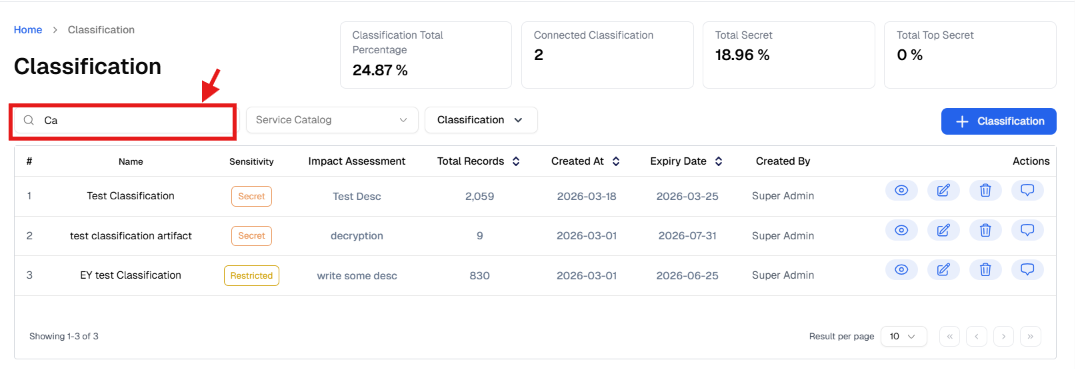
Search and Filtering Tools
To search for or filter a data classification:
- Navigate to the top of the page
- Use the search field to search by classification name
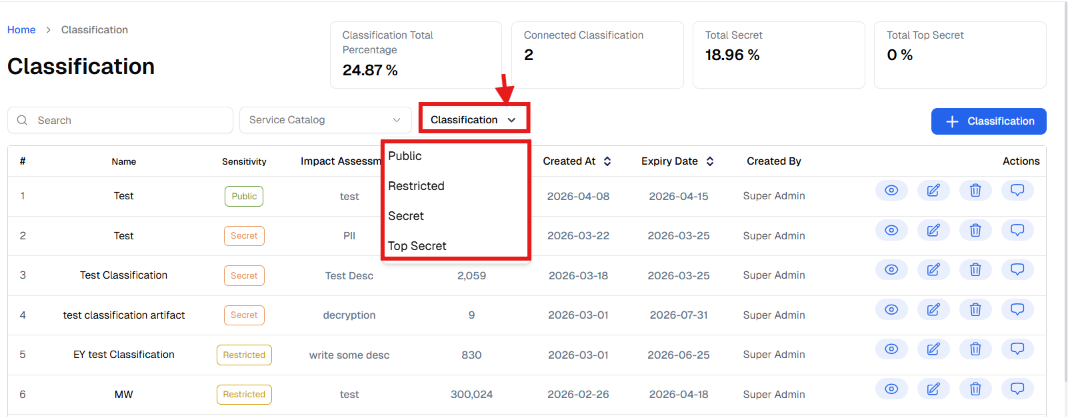
- Use the Classification dropdown to filter results by sensitivity level
Classification levels include:
- Public
- Restricted
- Confidential
- Top Secret
- Top Secret – Non-Shareable
As shown in Figure (10).
[Figure (10)]
|
📌 Note Some classifications may not appear in results if the user does not have the required permissions. |
Data Classifications Table
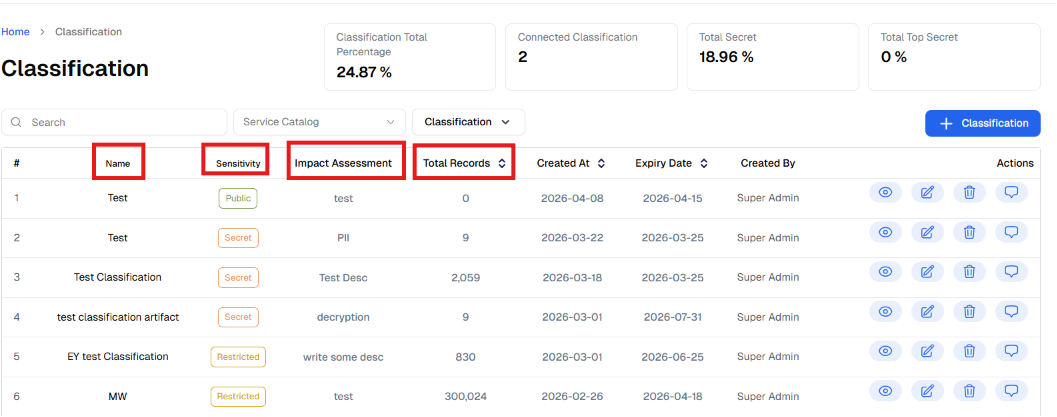
The table displays all classifications created within the system.
The table includes the following information:
- Serial number
- Classification name
- Sensitivity level
- Impact assessment
- Number of records
- Creation date
- Expiry date
- Created by
Figure (11): Data Classifications Table
[Figure (11)]
The module allows users to manage data classifications through several actions.
These actions include:
- View details
- Edit
- Delete
- Add comments
Viewing Classification Details
To view the details of an existing classification:
- Navigate to the Classifications Table.
- Select the desired classification.
- Click View Details.
As shown in Figure (12).
[Figure (12)]
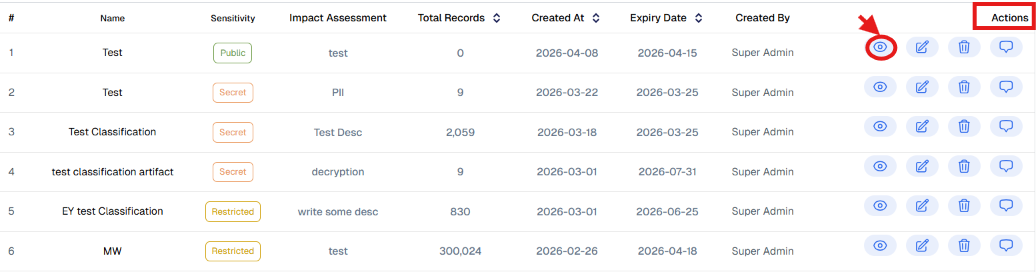
From this page, all classification data can be reviewed.
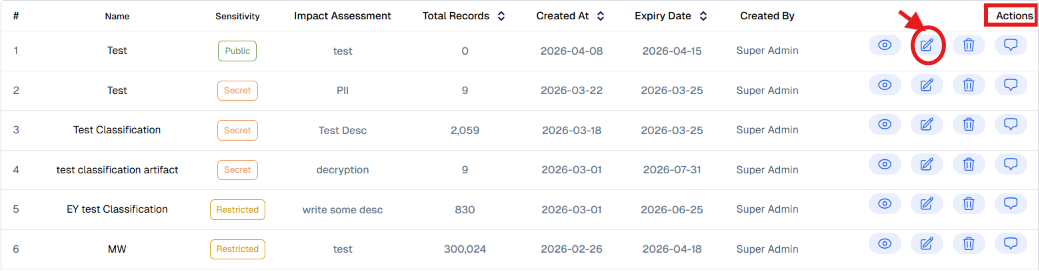
Updating a Data Classification
To update an existing classification:
- Navigate to the Classifications Table.
- Select the desired classification.
- Click Update.
- Update the required fields.
- Click Save.
As shown in Figure (13).
[Figure (13)]
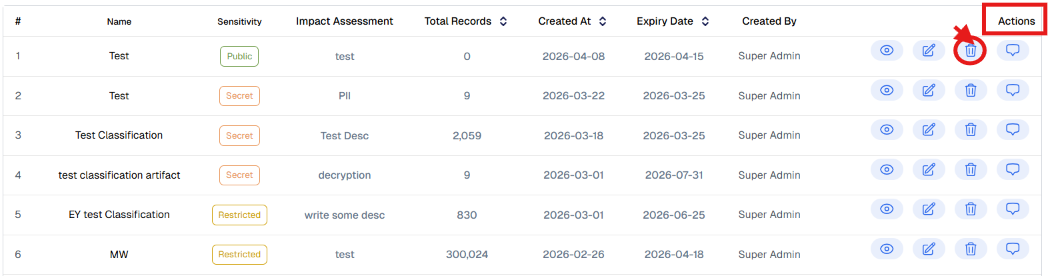
Deleting a Data Classification
To delete a data classification:
- Navigate to the Classifications Table.
- Select the desired classification.
- Click Delete.
- Confirm the deletion.
As shown in Figure (14).
[Figure (14)]
Availability of this option depends on the permissions granted to the user.
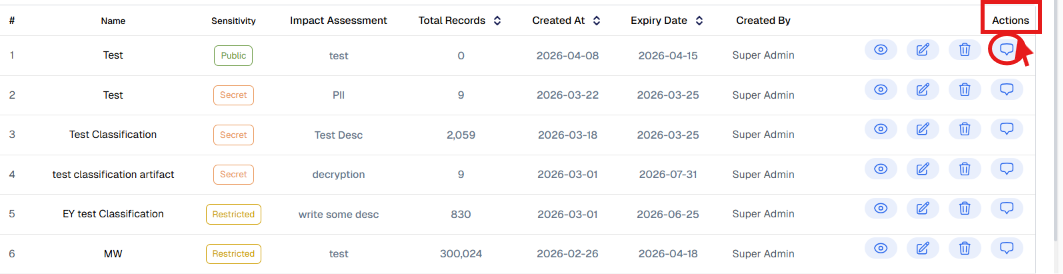
Adding a Comment
To add a comment on a data classification:
- Select the desired classification from the table.
- Click Comments.
- Write the note.
- Save the comment.
As shown in Figure (15).
[Figure (15)]
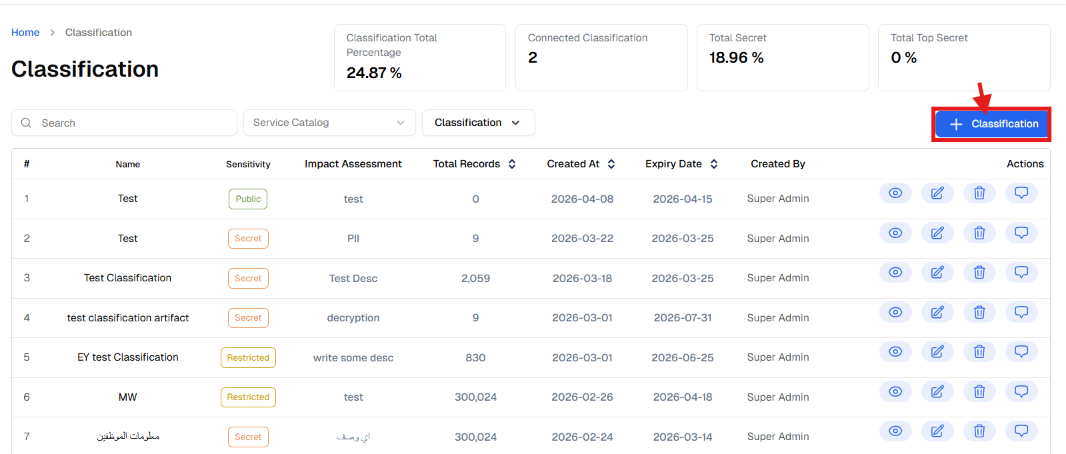
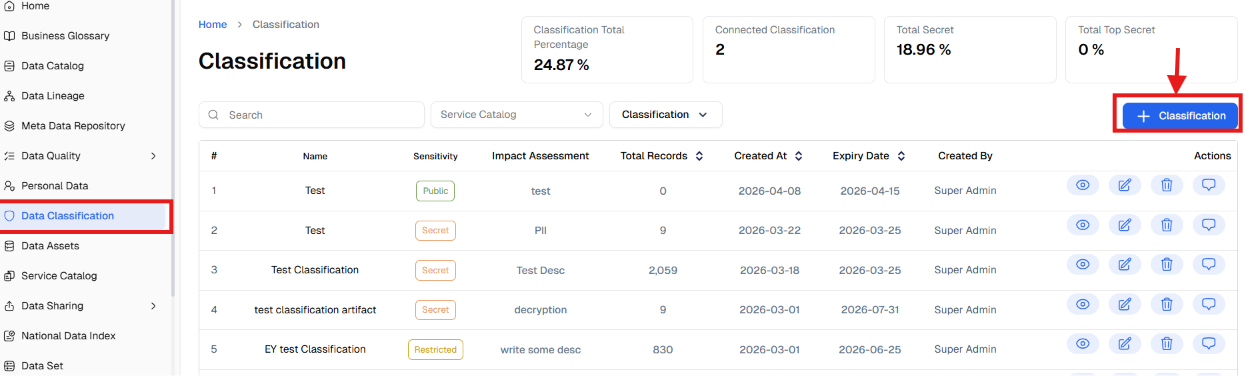
Creating a New Data Classification
To add a new data classification:
- Navigate to Data Classification from the side menu.
- Click Add + Classification.
- Complete the classification creation steps.
Figure (16): Add Data Classification form
[Figure (16)]
Step 1: Enter Basic Information
This step includes:
- Classification type (NDMO or Custom)
- Classification name
- Description
See Figure (5).
The description helps clarify the nature of the data and the reason for the chosen classification.
Step 2: Set the Classification Level
Sensitivity levels include:
- Public
- Restricted
- Confidential
- Top Secret
- Top Secret – Non-Shareable
See Figure (6).
Confirmation window for "Top Secret – Non-Shareable"
When this level is selected, an explanatory window appears. See Figure (7).
It explains:
- The cases in which this level should be used
- Its connection to a high impact assessment
- Examples of sensitive data such as: Security information, International relations, Data related to national infrastructure
Step 3: Set the Expiry Date
The system allows setting an expiry date for the classification in order to periodically review and re-evaluate the sensitivity level.
Step 4: Enter the Impact Assessment
The impact assessment is used to estimate the potential impact in the event of:
- Data leakage
- Data misuse
- Data loss or tampering
This helps in choosing the appropriate classification level.
Step 5: Link the Classification to Data
At this stage, the query builder is used to link the classification to actual data.
Selecting the Service Catalog
- Navigate to the Service Catalog field.
- Select the catalog that contains the data to be classified.
See Figure (8).
Selecting Columns
- Select the required table
- Identify the target columns
- Add new columns as needed
Step 6: Save the Classification
After reviewing all settings:
- Click Next to navigate between steps.
- Review the information.
- Click Save.
After saving, the classification appears immediately in the classifications table.
10. PermissionsThe operations available within the Data Classification module depend on the permissions granted to the user within Governata.
Some users may be able to:
- View classifications
- Add new classifications
- Edit classifications
- Delete classifications
- Add comments
Access may also be restricted based on:
- Data sensitivity level
- Data classification
- Access permissions for the data source
To ensure effective use of data classification, the following is recommended:
- Choose the sensitivity level carefully
- Document the description and impact assessment clearly
- Review classifications periodically
- Link classifications to the correct data sources
- Carefully review high-sensitivity classifications before approving them
What is the purpose of data classification?
To determine the sensitivity level of data in order to support protection and compliance.
What is the difference between the various classification levels?
They differ in the degree of sensitivity and the impact of unauthorized disclosure.
When should "Top Secret – Non-Shareable" be selected?
When disclosure of the data could cause significant harm to security or sovereignty.
Can a classification be edited after it is created?
Yes, the sensitivity level or description can be updated as needed.