
The Personal Data feature in Governata is used to discover personal data within databases, organize it, classify it, and review it in a way that supports compliance with privacy regulations such as the Saudi Personal Data Protection Law (PDPL).
This feature enables organizations to:
- Automatically discover personal data within databases
- Classify data under clear categories such as Identity, Contact, or Location information
- Review data status (Pending – Approved – Rejected)
- Monitor compliance with data protection requirements
The system is not limited to discovery only — it also enables full review, approval, rejection, and tracking of every personal data element.
2. System ObjectivesThe Personal Data system aims to help the organization identify and manage personal data in a structured and secure manner.
This helps to:
- Inventory personal data within different systems
- Improve data classification according to clear categories
- Support compliance with privacy requirements
- Enable governance teams to review, approve, or exclude data
This manual covers how to use the Personal Data module within Governata, including:
- Accessing personal data within the system
- Using the main page and search and filtering tools
- Reviewing discovered elements
- Manually adding personal data
- Understanding permissions related to personal data management
Personal Data
Any data through which an individual can be directly or indirectly identified.
Parent Category
The main classification of personal data such as Identity information, Contact information, or Location information.
Discovered Category
The classification automatically determined by the system for a data element based on analysis.
Discovery Rate
An indicator showing the probability that a column or field contains personal data.
5. Roles and ResponsibilitiesManaging personal data within the organization requires participation from several roles to ensure review accuracy and regulatory compliance.
Key roles include:
Data Stewards
Review discovered data, verify classification accuracy, and make appropriate decisions.
Data Owners
Oversee the approval of personal data linked to their scope of responsibility.
Governance & Compliance Teams
Monitor the application of personal data protection policies and regulatory compliance.
Privacy Officers
Review the impact of personal data on privacy regulation compliance and ensure correct handling.
Information Security Teams
Support protecting personal data from unauthorized access and monitor related security controls.
5. Target AudienceThis manual targets users responsible for managing personal data within the organization, such as:
- Data Stewards
- Data Owners
- Governance & Compliance Teams
- Privacy Officers
- Information Security Teams
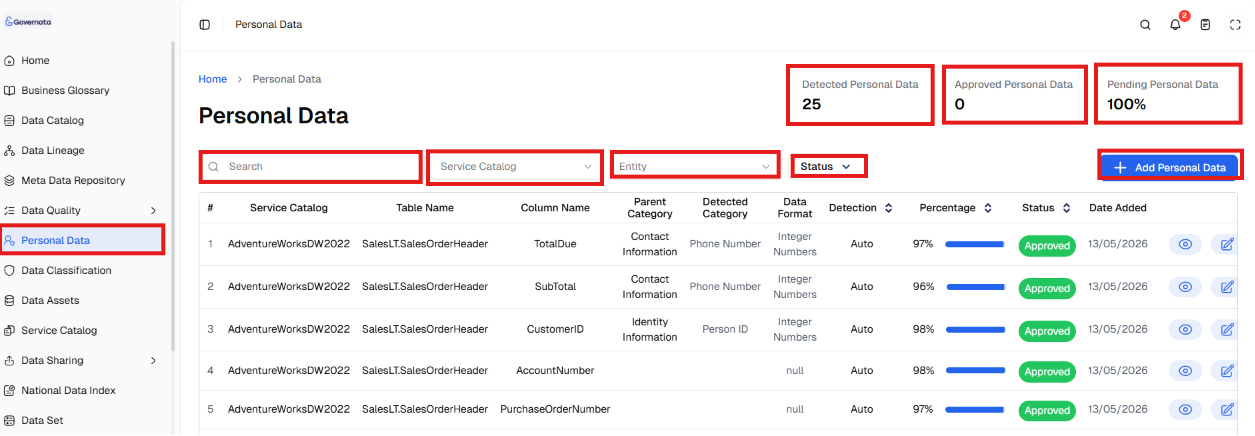
To access personal data and review it quickly:
- Navigate to Personal Data from the side menu.
- Review the top-level indicators to understand the general status of personal data.
- Use the search field or filtering tools to find the required element.
Figure (1): Personal Data main page
[Figure (1)]
|
📌 Note Displayed data may vary depending on connected systems and the Service Catalog linked to the platform. |
The Personal Data main page displays a general overview of the status of personal data within the system.
The page includes:
- Summary indicators
- Search and filtering tools
- Personal data table
Summary Indicators
A set of indicators at the top of the page show the status of personal data within the system, including:
Discovered Personal Data
Number of personal data elements automatically discovered within linked systems.
Approved Personal Data
Elements that have been reviewed and officially approved as personal data.
Pending Personal Data
Elements for which a final decision has not yet been made.
These indicators provide a quick overview of the level of personal data management within the entity.
Search and Filtering Tools
To search for or filter personal data:
- Navigate to the top of the page.
- Use the search field to search by table or column name.
- Use the Service Catalog dropdown to filter data by source system.
- Select the status such as: Approved, Pending, Rejected.
- Use Category to filter data by type such as: Identity information, Contact information, Location information.
As shown in Figure (2).
[Figure (2)]

These tools help review data easily even when there are a large number of elements.
|
📌 Tip It is recommended to start by reviewing elements with a high discovery rate as they usually represent actual personal data. |
Personal Data Table
The table is the main component of this module, where each personal data element is displayed in a separate row.
Figure (3): Personal Data Table
[Figure (3)]
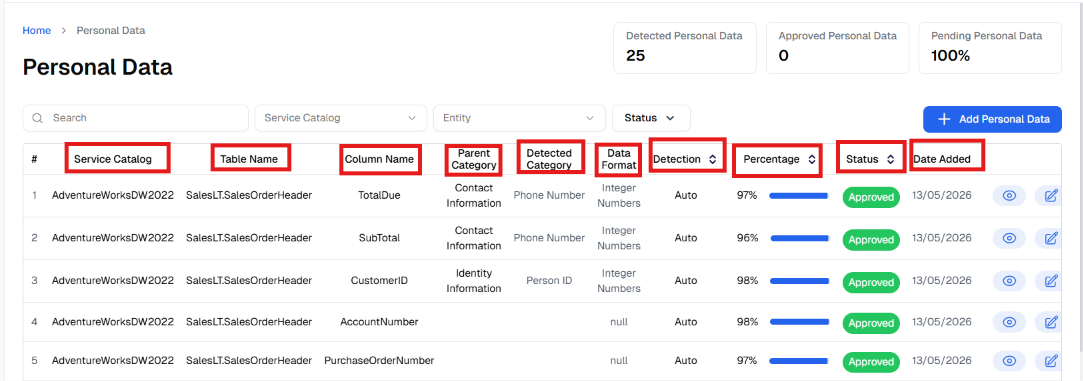
The table contains the following information:
Service Catalog
The system or application that contains the data.
Table Name
The name of the table within the database.
Column Name
The column that contains personal data.
Parent Category
The main classification of the data.
Discovered Category
The classification automatically determined by the system.
Data Format
The type or format of the discovered data.
Determination Method
Automatic or Manual.
Discovery Rate
Probability that the column contains personal data.
Status
Element status such as: personal_data_unknown.
Date Added
9. Managing Personal DataThis module allows the user to review and manage personal data elements through a set of actions and steps.
Available Actions
The system provides a set of actions for each personal data element.
Actions include:
- View Details
- Update Data
- Add Notes
- View Data
- Approve Data
- Exclude Data
As shown in Figure (4).
[Figure (4)]
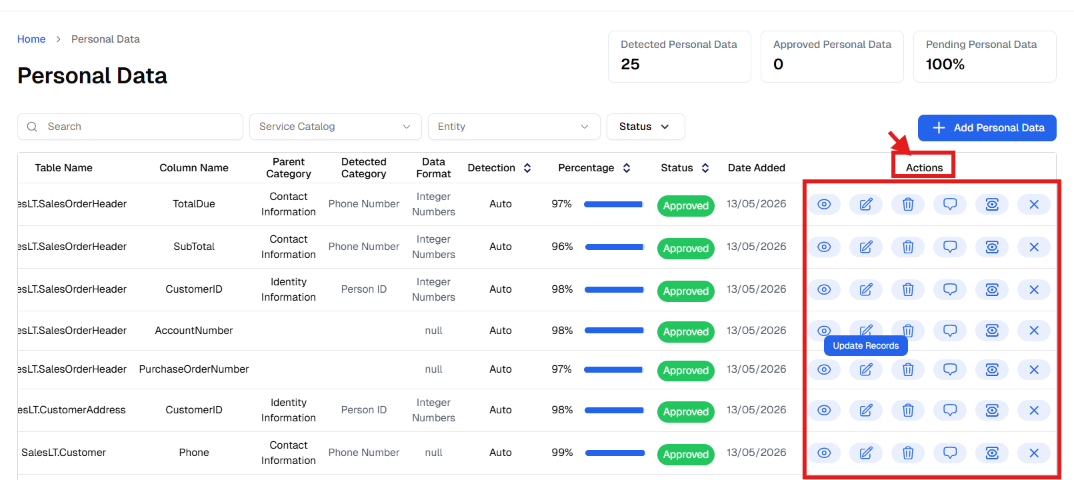
The availability of some actions depends on the permissions granted to the user.
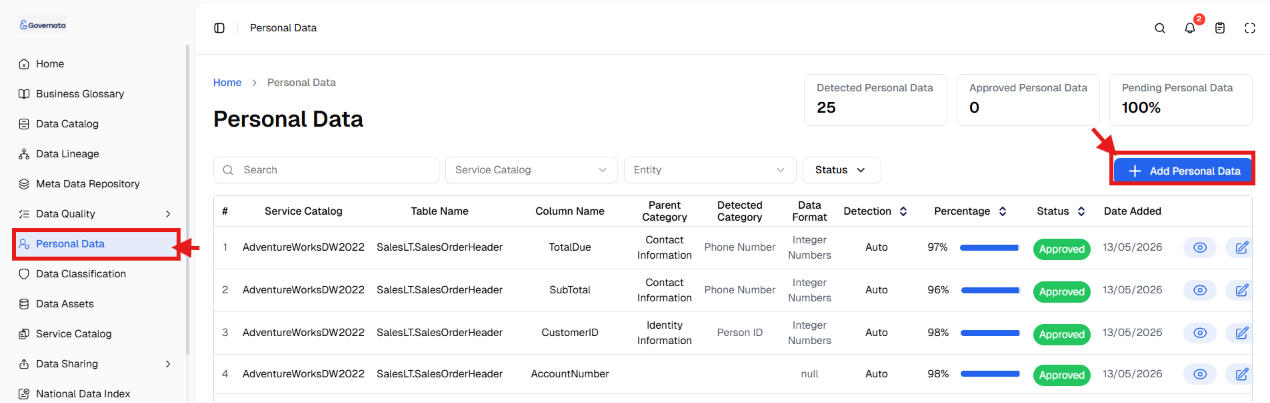
Adding New Personal Data
To manually add personal data within the system:
- Navigate to Personal Data.
- Click + Add Personal Data.
- Complete the addition steps.
As shown in Figure (5).
[Figure (5)]
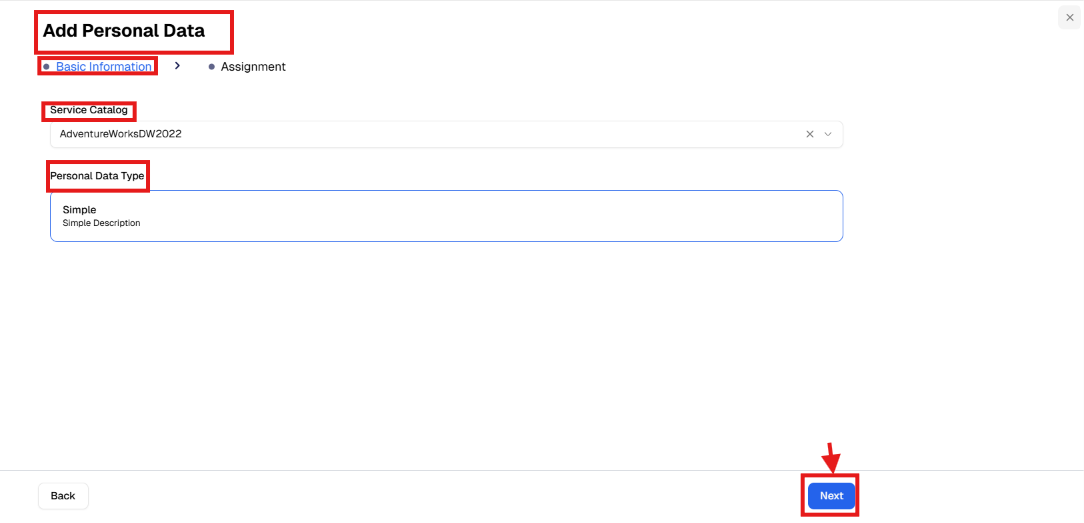
Step 1: Entering Basic Information
At this stage, the following is specified:
Service Catalog
Select the system or application containing the data.
Personal Data Type
Such as: Personal data, Non-shareable data.
As shown in Figure (6).
[Figure (6)]
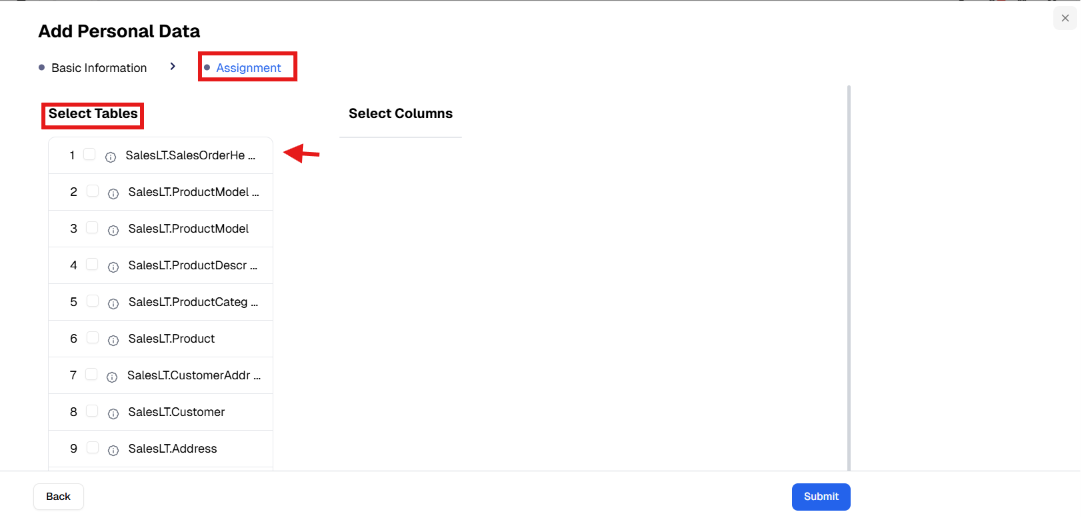
Step 2: Selecting Tables and Columns
To identify the location of personal data:
- Select the table from the database.
- Review available columns within the table.
- Identify columns that contain personal data.
As shown in Figure (7).
[Figure (7)]
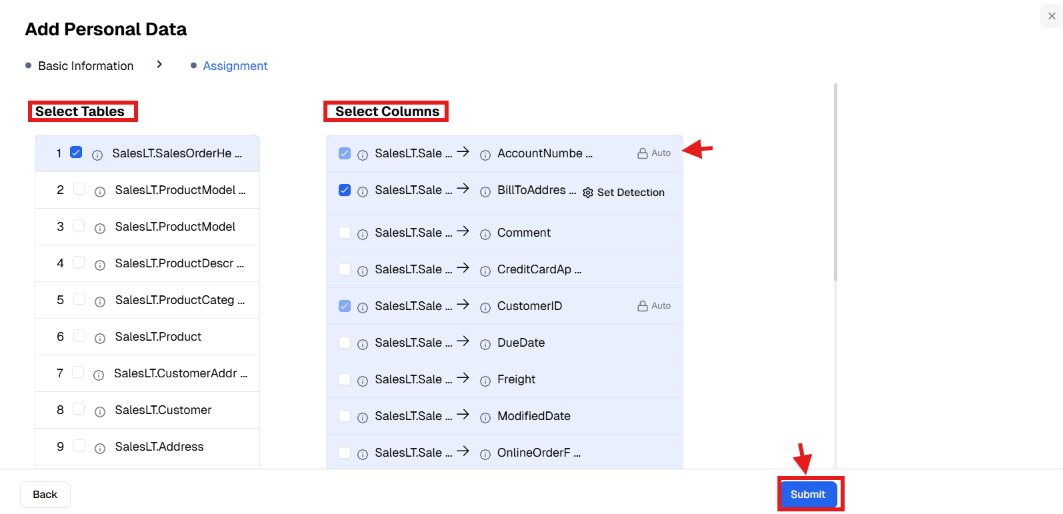
Step 3: Submitting Data
After finishing identifying the columns:
- Review the selected data.
- Click Submit.
The data is added to the personal data list with a status of Under Review.
As shown in Figure (8).
[Figure (8)]
10. Common Usage Scenarios
Scenario 1: Reviewing Automatically Discovered Data
Situation
A Data Steward wants to review data automatically discovered by the system.
Steps
- Navigate to Personal Data.
- Use filtering by Status and select Pending.
- Review elements displayed in the table.
- Open element details to verify data type.
- Approve or exclude the data based on the result.
Outcome
Correct personal data is approved and discovery accuracy is improved.
Scenario 2: Checking for Personal Data in a Specific Table
Situation
A data analyst wants to know whether a specific table contains personal data.
Steps
- Navigate to Personal Data.
- Use the search field and type the table name.
- Review columns associated with the table.
- Verify the discovered category and discovery rate.
Outcome
It can be determined whether the table contains personal data before using it.
Scenario 3: Manually Adding Personal Data
Situation
A user wants to register personal data that was not automatically discovered.
Steps
- Navigate to Personal Data.
- Click Add Personal Data.
- Select the appropriate Service Catalog.
- Identify the table and columns containing the data.
- Submit the data for review.
Outcome
The personal data is registered within the system and included in the review process.
11. PermissionsThe ability to use the Personal Data module depends on the permissions granted to the user within Governata.
Some users may be able to:
- View personal data only
- Review discovered elements
- Approve personal data
- Reject or exclude data
- Add notes during review
Access to some data may also be restricted based on additional factors such as:
- Data classification
- Sensitivity level
- Source access permissions
If some options such as Approve or Edit are not visible, the reason may be insufficient permissions for the user.
12. Best PracticesTo ensure effective management of personal data, the following is recommended:
- Review automatic discovery results and do not rely on them entirely
- Approve personal data as soon as it is verified
- Select the correct category accurately
- Start by reviewing elements with high discovery rates
- Document reasons for rejection or suspension
- Review personal data periodically
What is the difference between discovered and approved data?
Discovered data is data that was automatically identified, while approved data is data that has been reviewed and officially approved.
What does the "personal_data_unknown" status mean?
It means the system has discovered potential personal data but it has not yet been reviewed.
Can data classification be changed after approval?
Yes, classification or status can be changed according to available permissions.
Is everything automatically discovered considered personal data?
No, automatic discovery relies on probabilities, so results must be reviewed before approval.
How does this feature support regulatory compliance?
By inventorying personal data, classifying it, and documenting approval or rejection decisions.