
- Overview
The Data Sharing module in Governata is one of the core modules that supports data governance within the organization. It enables the organized, secure management of requests to share data between different departments or with external parties.
This module helps to:
- Organize internal data sharing requests
- Manage data sharing with external parties
- Apply governance and compliance policies
- Document all data sharing operations
- Track request status and approval workflows
The platform also provides clear mechanisms for reviewing requests by responsible parties such as: the Data Office, Data Steward, and Technical Teams — ensuring data is shared in a structured manner aligned with organizational policies.
2. System Objectives
The Data Sharing module aims to organize the process of requesting and sharing data within the organization or with external parties according to clear governance controls.
This helps to:
- Organize data sharing between departments
- Ensure requests are reviewed before data is shared
- Document all data sharing requests
- Support compliance with regulatory policies and governance requirements
This manual covers how to use the Data Sharing module within Governata, including:
- Accessing the Data Sharing page
- Browsing internal data sharing requests
- Managing external data sharing requests
- Creating a new data sharing request
- Using API interfaces for data sharing
- Tracking request status
Data Sharing Request
A formal request submitted to obtain certain data within the organization or to share it with another party.
Data Office
The entity responsible for reviewing data sharing requests and ensuring they comply with governance policies.
Data Elements
The specific fields or columns the user requests access to.
Data Sharing Agreement
A regulatory document that defines the terms of data sharing between different parties.
5.Roles and Responsibilities
Managing data sharing requires participation from several roles within the organization to ensure requests are reviewed and approved according to approved policies.
Key roles include:
Data Analysts
Submit data sharing requests for use in analysis or report preparation.
Data Stewards
Review requests and ensure they comply with data management policies.
Governance Teams
Monitor the application of data sharing policies and manage approval processes.
IT Teams
Support the technical implementation of data sharing and manage system integrations.
Data Owners
Hold the authority to give final approval on sharing data within their domain.
6. Target Audience
This module targets a group of users within the organization, such as:
- Data Analysts
- Governance Teams
- Data Stewards
- IT Teams
- Data Owners
- Parties responsible for approvals
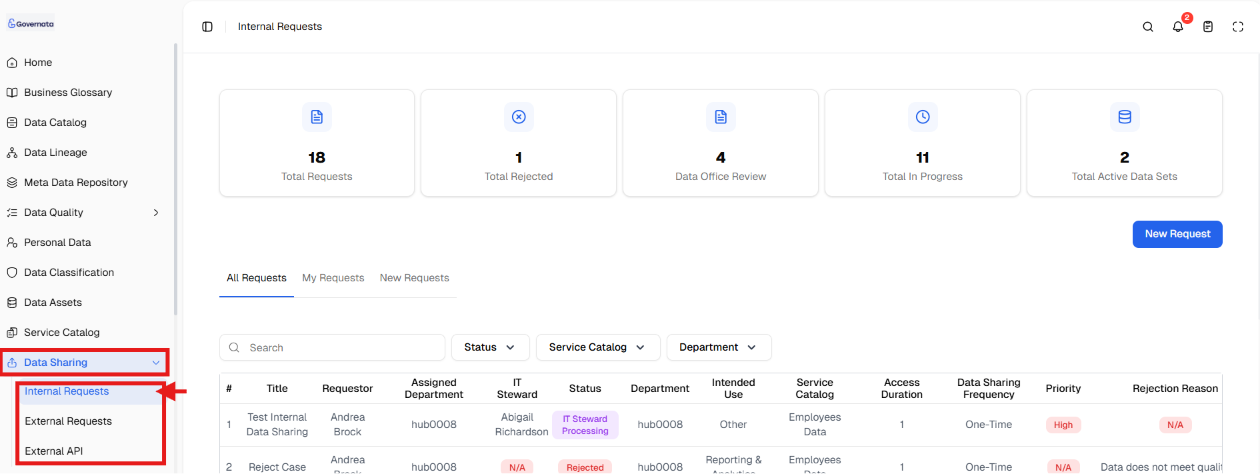
To access the Data Sharing module and review requests quickly:
- Navigate to the side menu in Governata.
- Select Data Sharing.
- Select one of the following sections:
- Internal Data Sharing Requests
- External Data Sharing Requests
- API Interfaces for Data Sharing
Figure (1): Data Sharing module menu
[Figure (1)]
8.Main Interface Overview
Internal Data Sharing Requests Main Page
This section displays all internal data sharing requests within the organization.
Figure (2): Internal Data Sharing Requests main page
[Figure (2)]
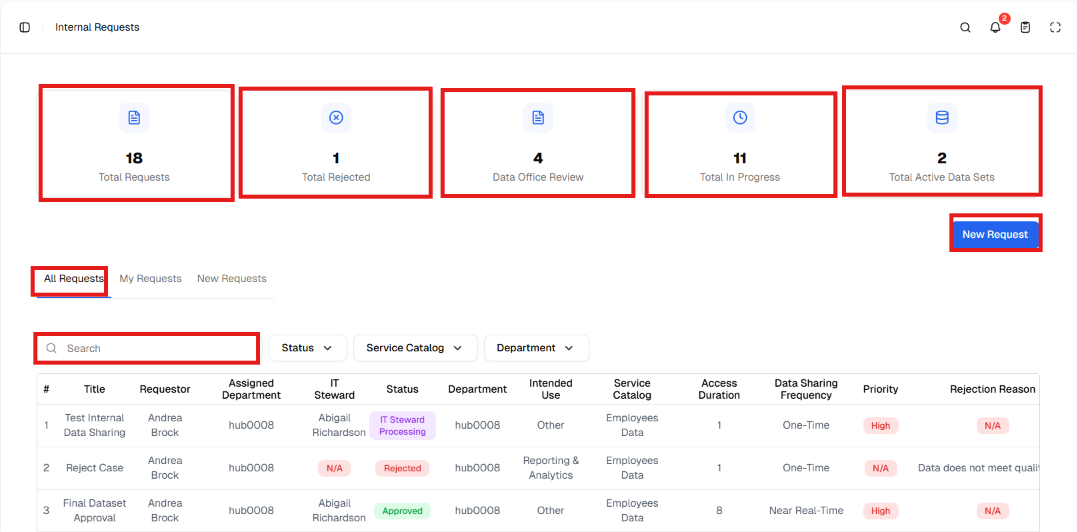
The page includes a set of indicators showing the status of requests.
Statistical Indicators
Indicators include:
Active Datasets
Displays the number of datasets available for sharing.
In Progress
Displays requests that are still being processed.
Data Office Review
Shows requests that require review from the Data Office.
Rejected Requests
Number of requests that have been rejected.
Total Requests
Total of all data sharing requests.
Request View Tabs
The system provides several tabs for organizing the display of requests:
All Requests
Displays all data sharing requests registered in the system.
My Requests
Displays requests created by the user.
New Requests
Displays requests that have not yet been reviewed.
Search and Filtering Tools
The system provides a set of filtering tools to facilitate access to requests.
Department
As shown in Figure (3).
[Figure (3)]
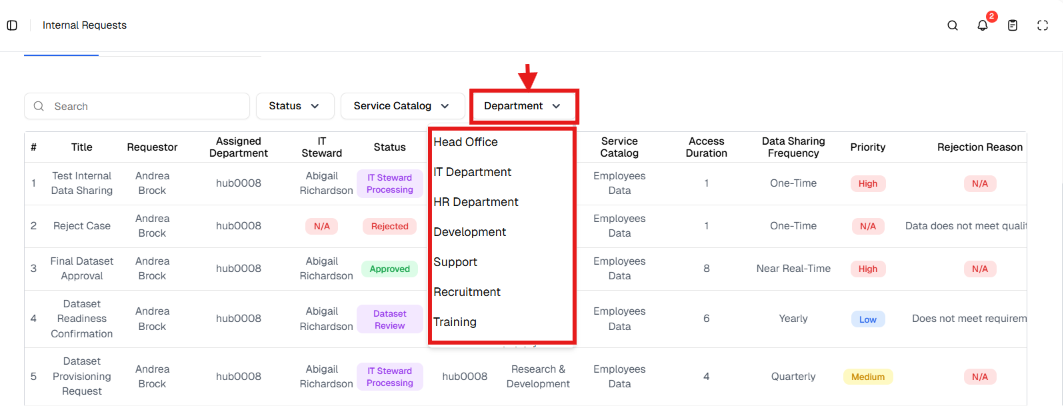
Filter requests by department within the organization, such as: IT, Human Resources, Development, Technical Support.
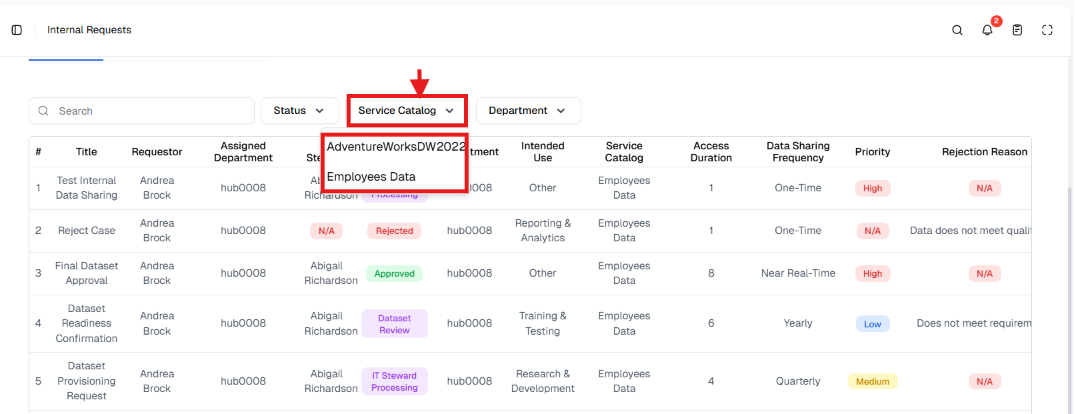
Service Catalog
Filter requests based on the associated dataset or service.
As shown in Figure (4).
[Figure (4)]
Status
As shown in Figure (5).
[Figure (5)]
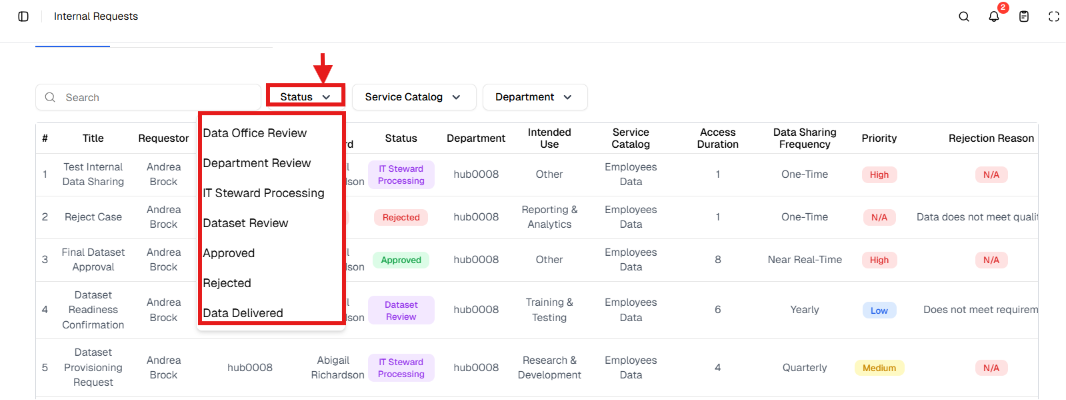
Filter requests by status such as: Data Office Review, Department Review, Data Steward Processing, Dataset Review, Approved, Rejected, Data Delivered.
Search
Use the search box to find a specific request easily.
Data Sharing Requests Table
The table displays details of all data sharing requests.
Figure (6): Data Sharing Requests Table
[Figure (6)]
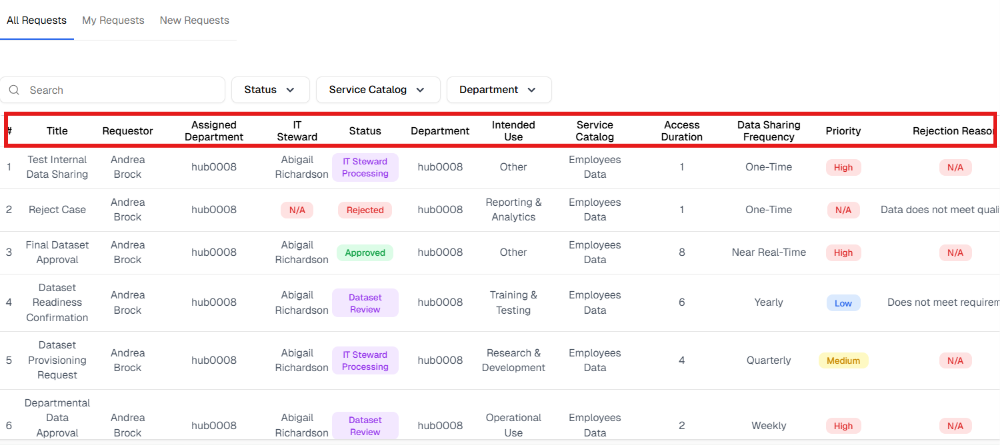
The table includes information such as:
- Request number
- Request title
- Requester's name
- Relevant department
- Department
- Intended use
- Service Catalog
- Access duration
- Data sharing frequency
- Request priority
- Request status
- Rejection reason (if any)
Available Actions on Requests
A set of actions can be performed on each request.
Figure (7): Actions menu
[Figure (7)]
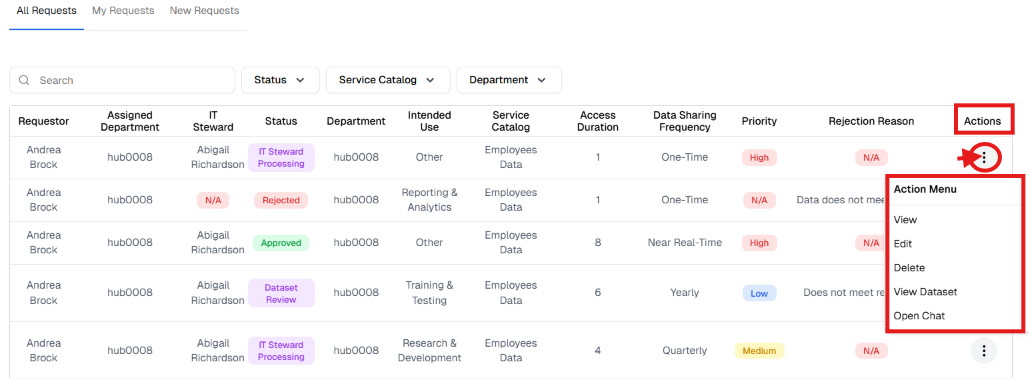
Actions include:
View
To view request details.
Edit
To update request information.
Delete
To delete the request from the system.
View Dataset
To view details of the dataset linked to the request.
Data Office Approval
To approve the request from the Data Office.
Open Chat
To communicate with relevant parties regarding the request.
Adding a New Data Sharing Request
A user can create a new data sharing request.
Steps to Create a Request
- Navigate to the Internal Data Sharing Requests page.
- Click the New Request button.
- The request creation window will appear.
Figure (8): New Request form
[Figure (8)]
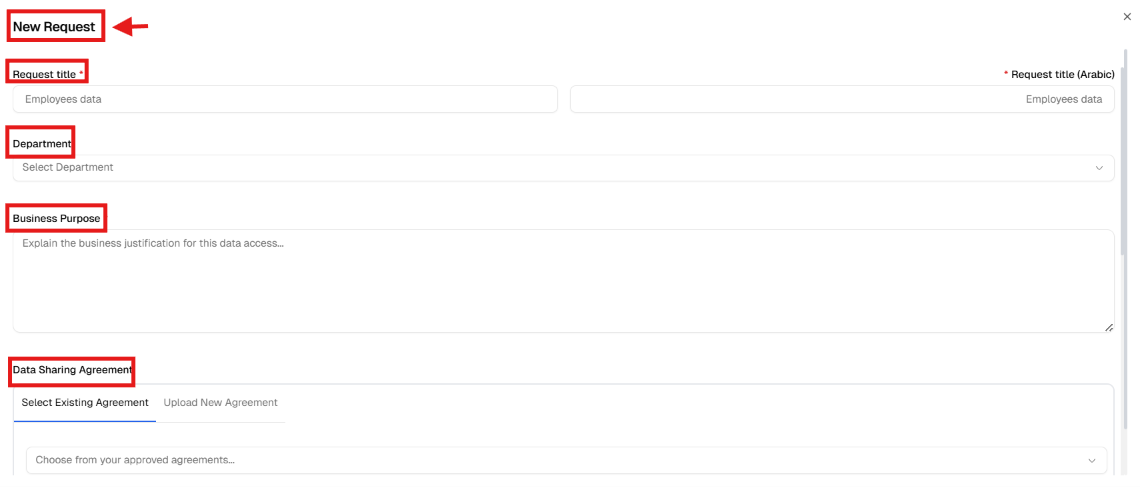
Entering Request Information
Request Title
Enter the name of the request that clarifies the nature of the data needed. Example: Employee Data.
Department
Select the department that the requester belongs to.
Business Purpose
Explain the business reason for requesting the data. Example: Employee performance analysis or preparing operational reports.
Data Sharing Agreement
The user can choose one of two methods: Upload a new agreement or Select an existing agreement.
Data Requirements
The user specifies the details of the required data, including: description of the required data and the purpose of its use.
Data Elements
Specific data elements can be identified such as: Column name, Data type, Description.
Access Settings
Intended Use
The purpose for which the data will be used.
Access Duration
The number of days the user needs the data.
Access Frequency
Such as: Daily, Weekly, Annual, Real-time.
|
📌 Note Available options may vary based on governance policies and user permissions within the system. |
External Data Sharing Requests
The system also enables management of data sharing requests with external parties.
Figure (9): External Data Sharing Requests page
[Figure (9)]
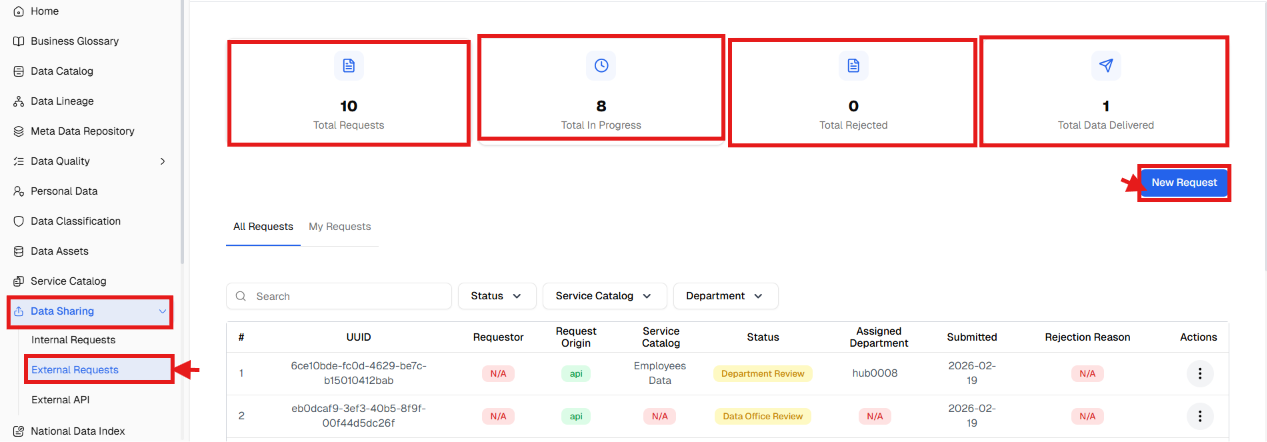
This section displays indicators such as:
- Delivered
- Rejected requests
- Requests in progress
- Total requests
A new request can also be created to share data with an external party.
API Interfaces for Data Sharing
The system provides the ability to share data through API interfaces.
Figure (10): API page for data sharing
[Figure (10)]
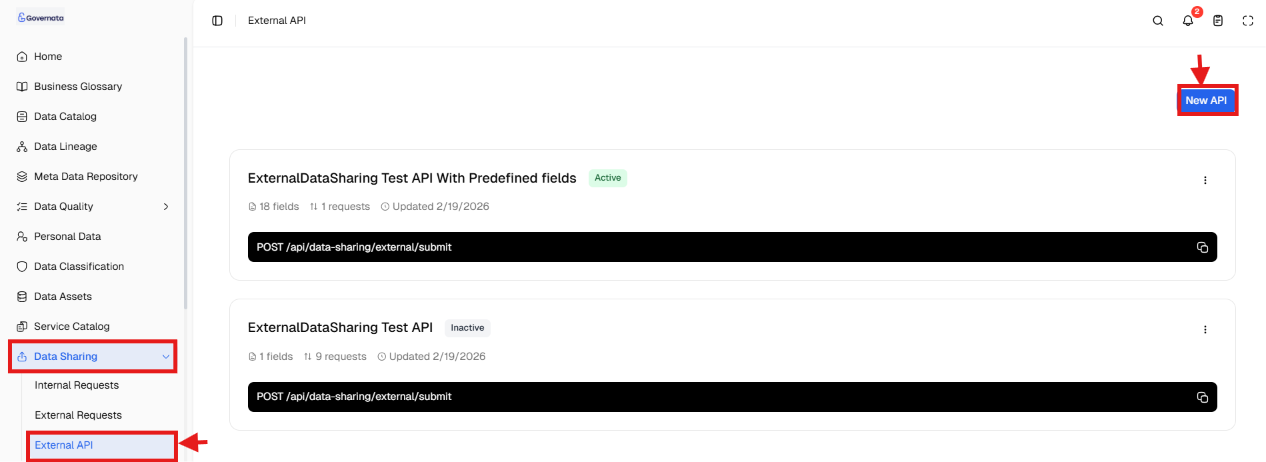
These interfaces allow:
- Sharing data with other systems
- Sending requests automatically
- Integrating the system with external applications
The following is displayed:
- API interface name
- Activation status
- Number of fields
- Number of requests linked to it
This section illustrates some practical cases for using the Data Sharing module within Governata.
Scenario 1: Data Sharing Request for Report Analysis
Situation
A data analyst wants to obtain employee data to prepare analytical reports within the organization.
Steps
- Navigate to the Data Sharing module from the side menu.
- Select Internal Data Sharing Requests.
- Click New Request.
- Enter the following information: Request title, Department, Business purpose for using the data.
- Specify the required data elements.
- Set the access duration and access frequency.
- Click Submit to send the request for review.
Outcome
The request is sent to the relevant parties such as the Data Office or Data Steward for review and approval.
Scenario 2: Reviewing a Data Sharing Request
Situation
The Data Office reviews a data sharing request submitted by a user.
Steps
- Navigate to the Data Sharing module.
- Enter Internal Data Sharing Requests.
- Filter requests by status: Data Office Review.
- Open the required request.
- Review request details and the purpose of data use.
- Make the appropriate decision: Approve or Reject the request.
Outcome
The request status is updated within the system and forwarded to the next workflow stage.
Scenario 3: Tracking a Data Sharing Request Status
Situation
A user wants to know the status of a data request they previously submitted.
Steps
- Navigate to the Data Sharing module.
- Select the My Requests tab.
- Search for the required request.
- Review the request status in the table.
Outcome
The user can determine whether the request is: Under review, Approved, Rejected, or Data delivered.
11.Permissions
The ability to use the Data Sharing module depends on the permissions granted to the user within the system.
Permissions may allow the user to:
- Create a data sharing request
- Review requests
- Approve or reject
- Edit requests
- Manage API interfaces
Some functions may also be restricted based on access level to:
- Datasets
- Departments
- Regulatory policies
To ensure effective management of data sharing requests, the following is recommended:
- Write a clear title for the request
- Clarify the business purpose of the data use
- Specify the required data elements precisely
- Set the appropriate access duration
- Review the request status periodically
What is the purpose of the Data Sharing module?
It aims to organize the process of requesting and sharing data within the organization or with external parties.
Can the request status be tracked after submission?
Yes, request status can be monitored through the My Requests page.
Can data be shared with external parties?
Yes, the system provides a dedicated section for external data sharing requests.
Does the system support data sharing via API?
Yes, data can be shared via API interfaces for integration with other systems.
What happens when a request is rejected?
The request status is updated to Reje
Knowledge Transition
Next, explore:
How to Apply Role-Based Access Control Step by Step.