
The Access Management module in Governata is one of the core modules responsible for organizing user permissions within the system.
It allows control over who can access data or different modules within the software by linking users to roles and departments and defining the level of permissions granted to each user.
This helps organizations to:
- Organize access to data and systems
- Protect sensitive data from unauthorized access
- Apply data governance policies within the organization
- Ensure alignment with security and compliance requirements
Access management in the software relies on several key elements:
- Users
- Departments
- Roles
- Permission levels
The Access Management module enables the organization to manage users and their permissions in a structured and secure manner within Governata.
This helps to:
- Define who can access the different modules
- Organize permissions according to roles and departments
- Support the application of security and governance policies
- Reduce the risk of unauthorized access to data
This manual covers how to use the Access Management module within Governata, including:
- Managing users
- Managing departments
- Controlling access linked to departments
- Managing roles
- Understanding permission levels and access types
User
Any person with an account within the system who can be granted permissions to access modules and data.
Role
A set of permissions assigned to users to organize what they can do within the system.
Department
An organizational unit within the organization to which users are affiliated and through which permissions are applied in a structured way.
General Access
The basic permissions granted to a user within the system in general.
Contextual Access
Permissions linked to a specific context such as department or data type.
Applied Access
The actual permissions applied to the user after taking into account role and department.
5. Roles and ResponsibilitiesAccess management within the organization requires participation from a number of roles to ensure permissions are organized and monitored.
Key roles include:
System Administrators
Oversee user, role, and department management within the system.
Governance Teams
Monitor the application of access policies and verify their alignment with governance requirements.
Information Security Officers
Review permission levels and ensure appropriate security controls are applied.
Department or Division Owners
Monitor users belonging to their departments and ensure they are granted appropriate permissions.
End Users
Use the system according to the permissions granted to them.
6. Target AudienceThis manual targets groups that work with access management within the organization, such as:
- Governance officers
- Information security officers
- System administrators
- Department owners
- Users authorized to manage permissions
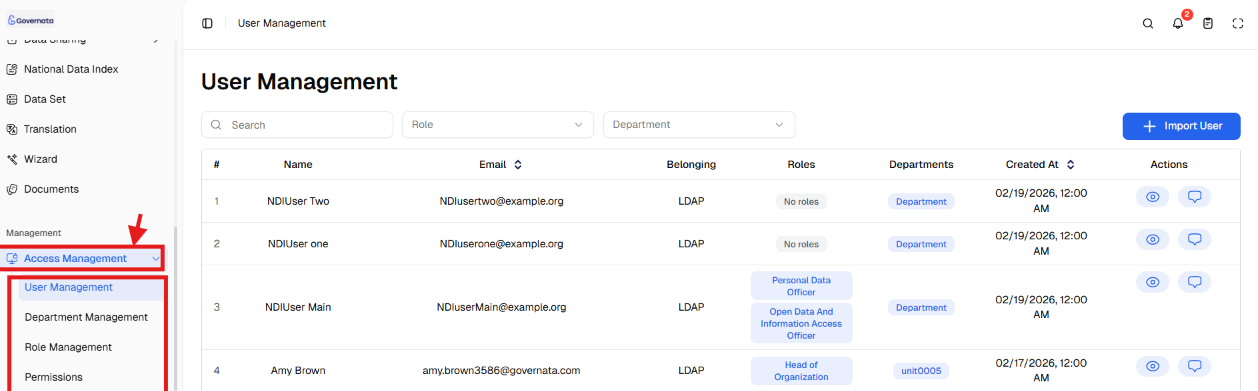
To access the Access Management module and start using it quickly:
- Navigate to the side menu in Governata.
- Select Access Management.
As shown in Figure (1).
[Figure (1)]
- Select the appropriate section as needed, such as: User Management, Department Management, Role Management, Permissions Management.
As shown in Figure (2).
[Figure (2)]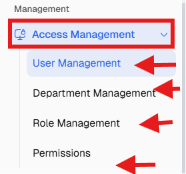
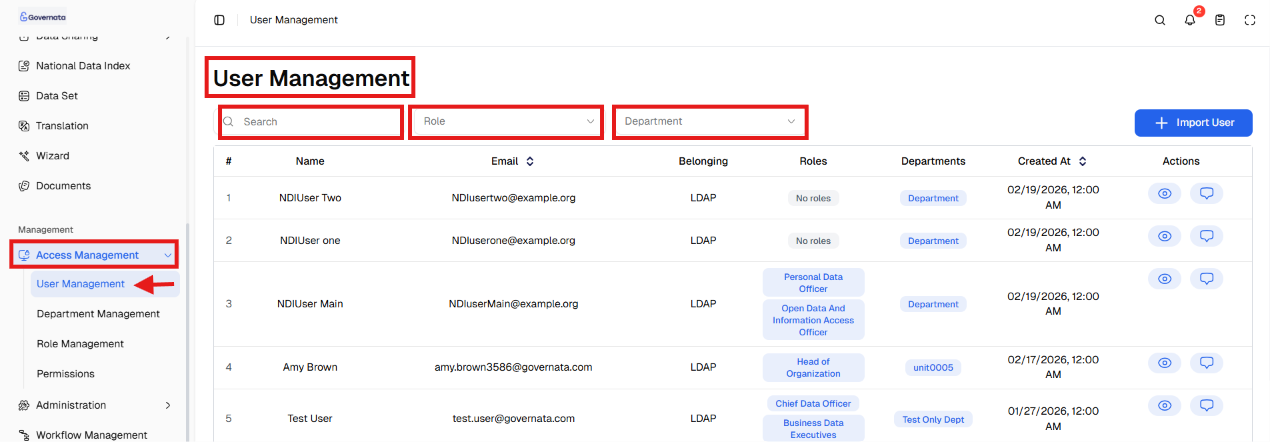
- Use search or filtering to find the required user, department, or role.
As shown in Figure (3).
[Figure (3)]
- Perform the appropriate action such as viewing, editing, or controlling access.
The Access Management module includes several main pages that help organize users and permissions within the system.
User Management
The User Management page allows viewing all users registered in the system and managing their data and permissions.
Page Components
Import User Button
The Import User button is used to add a new user to the system. When clicked, a user data entry window appears.
Required data includes:
- Username
- Department
- Role
After entering the data, click Submit to add the user to the system.
Search and Filtering Tools
The page provides a set of search tools to make finding users easier:
Search
Search for a user using name or email.
Filter by Role
View users based on their functional role within the system.
Example roles:
- Compliance Officer
- Data Office Manager
- CEO Committee
- Senior Supervisor
- Data Management Officer
- Personal Data Protection Officer
- Legal Advisor
- Data Access Officer
- Business Data Specialists
Filter by Department
View users according to the department they belong to within the organization.
User Table
The table displays information about users registered in the system, such as:
- Username
- Department
- Role
- Connection type (e.g., LDAP)
- Account creation date
This table helps in monitoring users and managing their permissions easily.
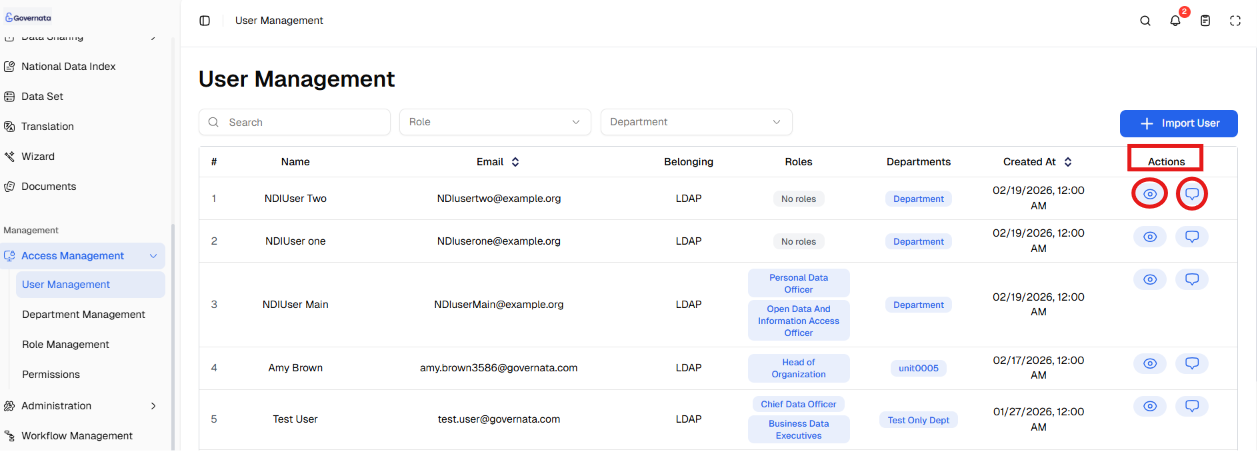
Available Actions
The system provides a set of actions for each user, such as:
View Details
To view user information.
Comments / Notes
To view or add notes associated with the user.
As shown in Figure (4).
[Figure (4)]
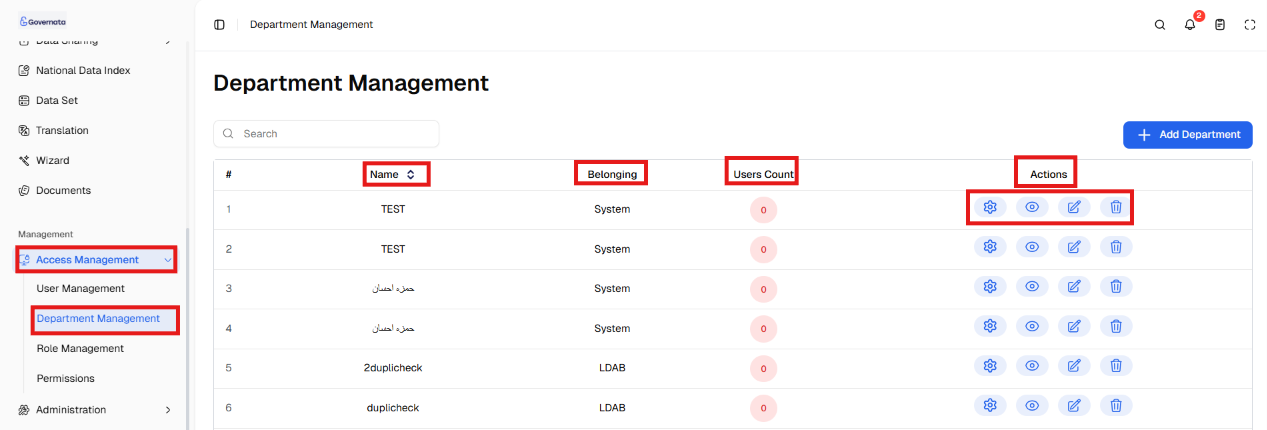
Department Management
The Department Management page allows organizing the organizational structure within the organization by creating and managing different departments.
This helps link users to appropriate departments and apply permissions in a structured manner.
Page Components
Add Department Button
The Add Department button is used to create a new department within the system. When clicked, a department data entry window appears.
Department data includes:
- Department name
- Arabic name
- Department level within the organizational structure
- Parent department
- Specify whether the department belongs to the data office
After entering the data, click Save to add the department.
Department Table
The table displays all departments registered in the system and contains information such as:
- Department number
- Department name
- Parent entity
- Number of users in the department
Available Actions
Several actions can be performed on departments, such as:
View Details
To view department information.
Edit Department
To update department data.
Update Records
To update data linked to the department.
Delete Department
To remove the department from the system.
Access Control
To define user permissions within the department.
As shown in Figure (5).
[Figure (5)]
Department Access Control
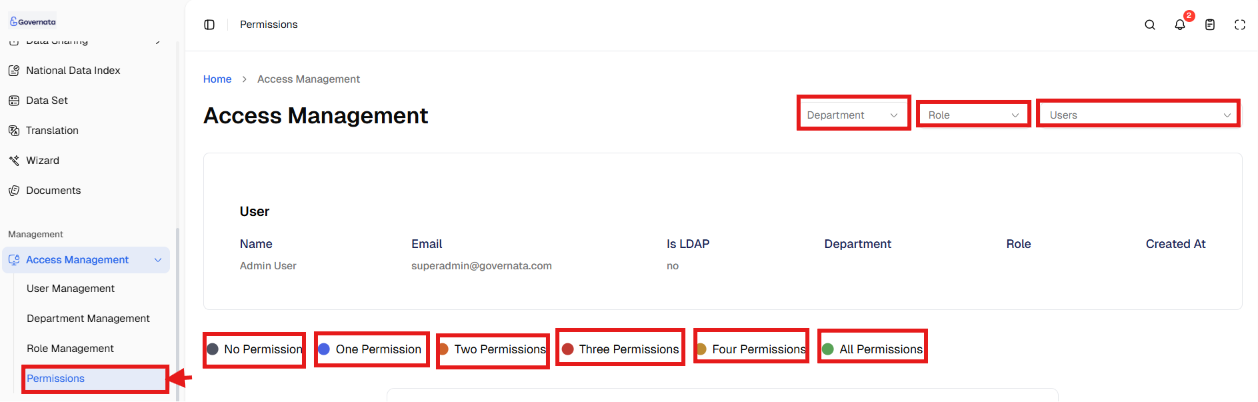
When Access Control is selected for a department, a dedicated page appears for managing access permissions linked to that department.
The page displays department information such as:
- Department name
- Arabic name
- ID card
- LDAP connection status
It also allows defining the level of permissions granted to users.
Permission Levels
The system displays different permission levels using color indicators showing the access level.
Levels include:
- No permissions
- One permission
- Two permissions
- Three permissions
- Four permissions
- All permissions
Access Types
The system relies on three types of access:
General Access
Defines the general permissions of the user within the system.
Contextual Access
Defines permissions based on a specific context such as department or data type.
Applied Access
Displays the actual permissions applied to the user.
As shown in Figure (6).
[Figure (6)]
Role Management
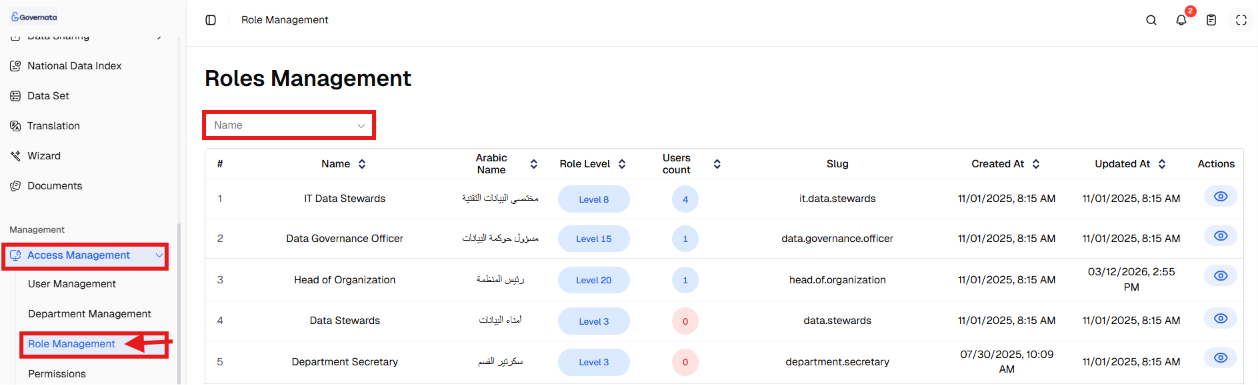
The Role Management page allows creating and managing functional roles within the system.
A role represents a set of permissions that can be assigned to users, simplifying permission management instead of assigning them to each user individually.
Page Components
Role Filtering
A specific role can be searched using the name dropdown.
Role Table
The table displays information about the different roles within the system, such as:
- Role name
- Arabic name
- Role level
- Number of users linked to the role
- Role abbreviation
- Creation date
- Update date
Viewing Users Linked to a Role
Users linked to each role can be viewed to know who holds these permissions within the system.
As shown in Figure (7).
[Figure (7)]
This module enables access management through three main pillars:
- User Management
- Department Management
- Role Management
This helps organize permissions and link them to users within the organization in a clear and systematic way.
10. PermissionsPermissions within the Access Management module are based on a set of core operations, such as:
- View – View data
- Add – Add new elements
- Update – Edit data
- Delete – Delete data
These permissions are applied according to the role and department the user belongs to.
Permissions may differ from user to user based on:
- The role assigned to them
- The department they belong to
- General, contextual, or applied access settings
To ensure effective access management within the system, the following practices are recommended:
- Define functional roles clearly before creating users
- Link users to the correct departments within the organization
- Grant the minimum level of permissions necessary to perform the work
- Review user permissions periodically
- Delete unused accounts to maintain system security
What is the purpose of the Access Management module?
The module aims to organize user permissions within the system and ensure secure access to data.
Can a user's role be changed after they are added?
Yes, the role associated with a user can be changed at any time through the User Management page.
Can a department be deleted from the system?
Yes, any unused department can be deleted through the delete option on the Department Management page.
Can the system be integrated with LDAP?
Yes, the software supports integration with the LDAP protocol for centralized user management.